
Flashquark Horizon Z Mechanical Keyboard Review
The FlashQuark Horizon Z Mechanical keyboard is a 60% layout board with RGB and Bluetooth. It’s even programmable and great for gaming! Read on!
Official Specs and Features
Here’s a link to the Flashquark Horizon Z mechanical keyboard product page.
- 61 keys – Compact size
- 62g Outemu Silent Sky switches for a firm, tactile keypress
- RGB LED backlighting can be changed onboard the keyboard without needing to use software.
- Uses latest Bluetooth 5.1 technology
- Can be used both over a wired USB-C connection and Bluetooth.
- Store up to 3 Bluetooth profiles for fast and convenient switching between devices.
- Compatible with Windows, Mac OS, iOS and Android
- 1800 mAh battery
- Companion software can be used to program macros and switch LED animationsCompanion Software: HERE
- In case of keyboard firmware issues, default firmware can be reflashed onto the keyboard with this: Horizon Z Default Firmware Flasher
Versions
This board is available with a black case and black keycaps as well as a white case with white keycaps (seen here). There are no other options available at this time.
Price
The going price for the Flashquark Horizon Z mechanical keyboard is $64.99. The two versions are the same price.
Short Review
I love small keyboards! Boards like this 60% Flashquark Horizon Z mechanical keyboard are just about in my sweet spot, too. You might remember posts about other similar 60% boards: the Obins Anne Pro and the Motospeed CK61, for example. Since that time I’ve added more. I love these! This Flashquark Horizon Z mechanical keyboard is a great iteration of the 60% format. It offers a fairly traditional feature set for this type of board, as well as wireless connectivity and USB-C charging. Functionality is great, and the RGB options are a fun bonus. I typically like more XDA-ish keycaps, so these caps are just a bit more tall and narrow at the top than I prefer, but for typing, it’s great!
Long Review
What’s Included
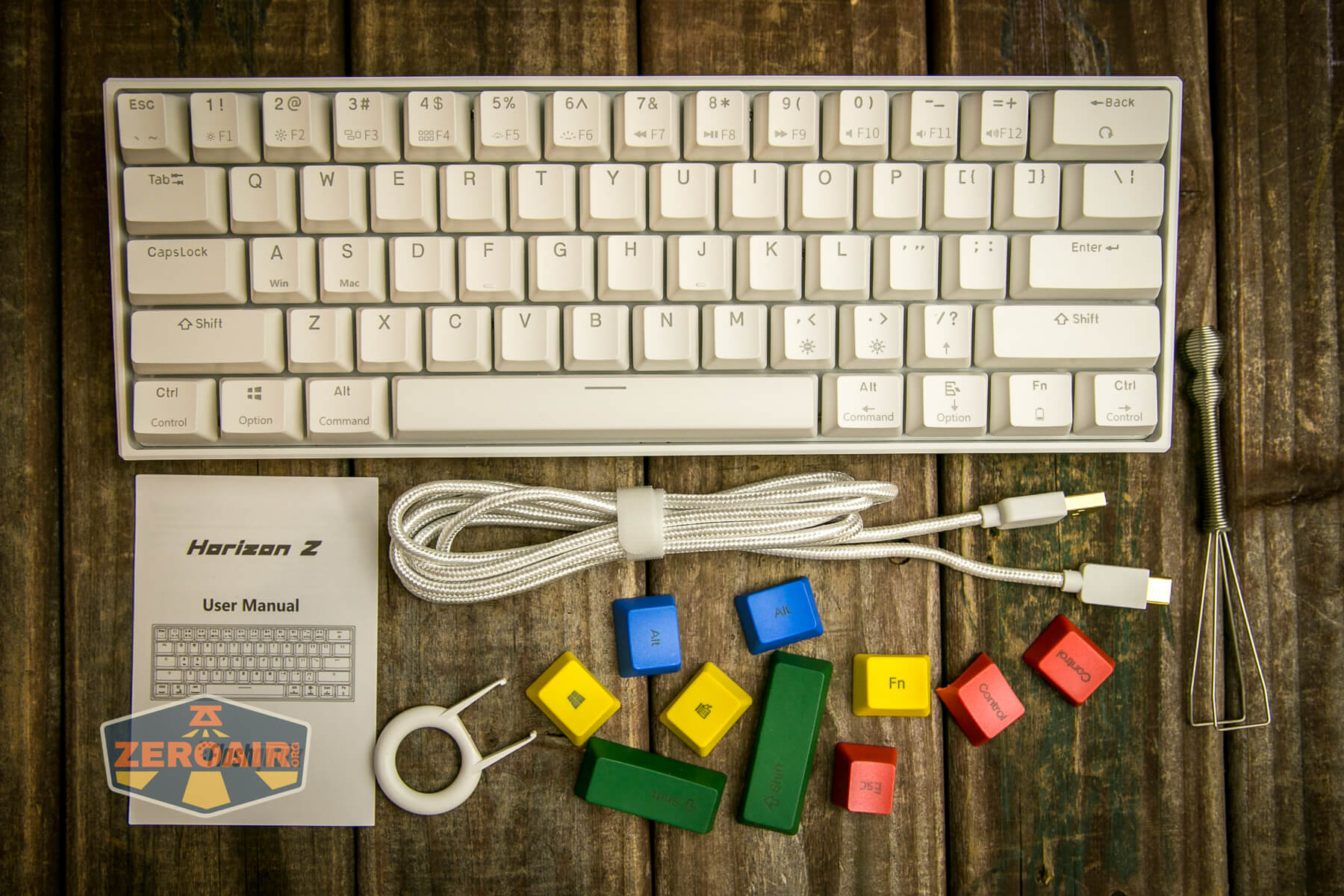
- Flashquark Horizon Z mechanical keyboard
- Spare
- Keycap Puller (2, 2 types)
- USB to USB-C cable
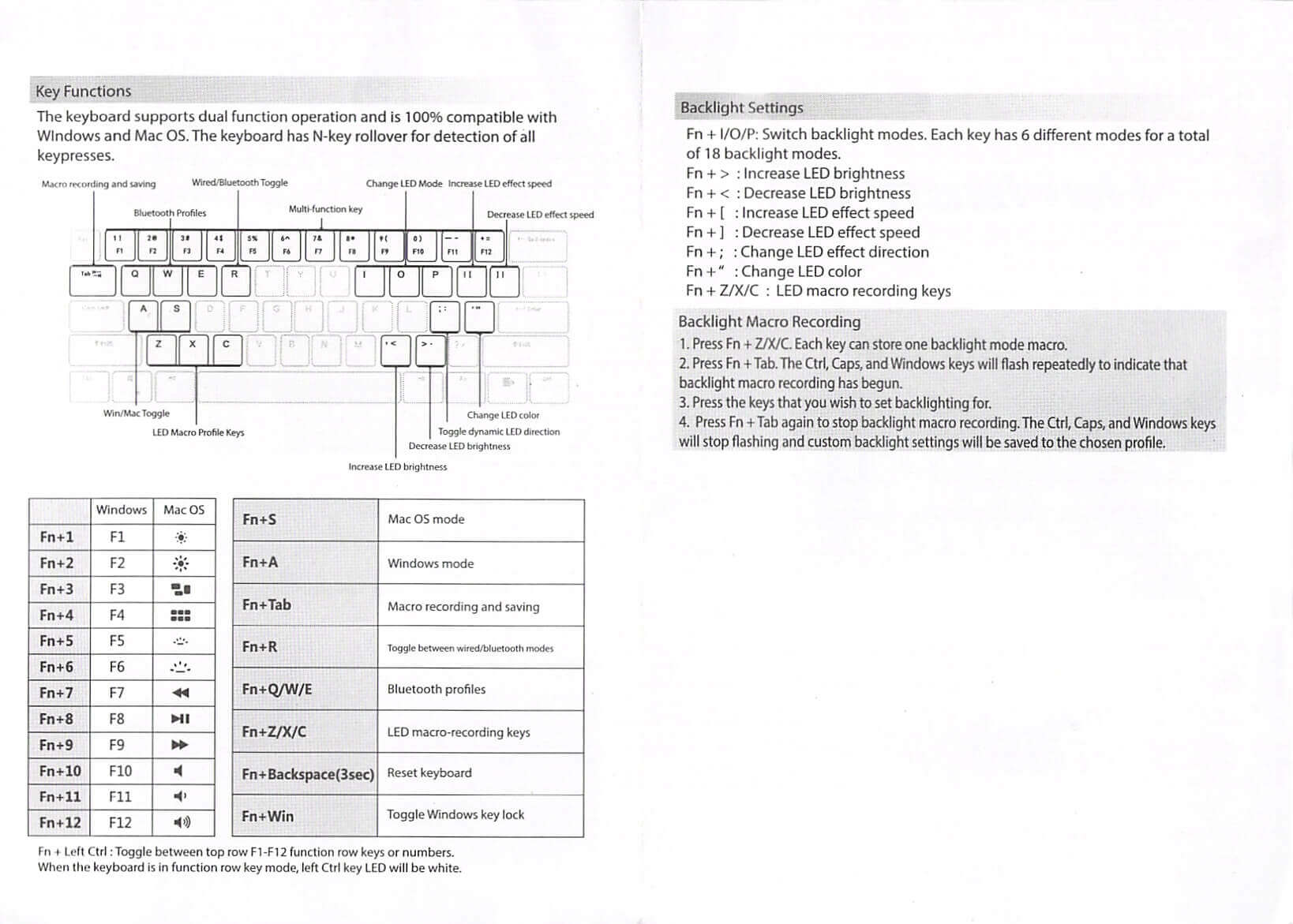
- Manual
Package and Manual
Size
Flashquark doesn’t give any official measurements, but it looks to be around 293 x 104 x 44mm. They do list the weight at 794g. This size is pretty much in line with other 60% keyboards. The board doesn’t have arrows, a fact I mention because I really like arrows. But it’s a very typical 60% board layout.
Build Quality and Disassembly
The build quality of the Flashquark Horizon Z mechanical keyboard is great.
If you’re a modder, there might be some things you wish to change about the Horizon Z. For example, you could add a sheet of insulation to soften the keystroke – there’s not one by default (nor is there usually, so this is no surprise.)
On the front edge, we get the Flashquark logo, which I find to be quite sharp and nice looking.[ez-toc]
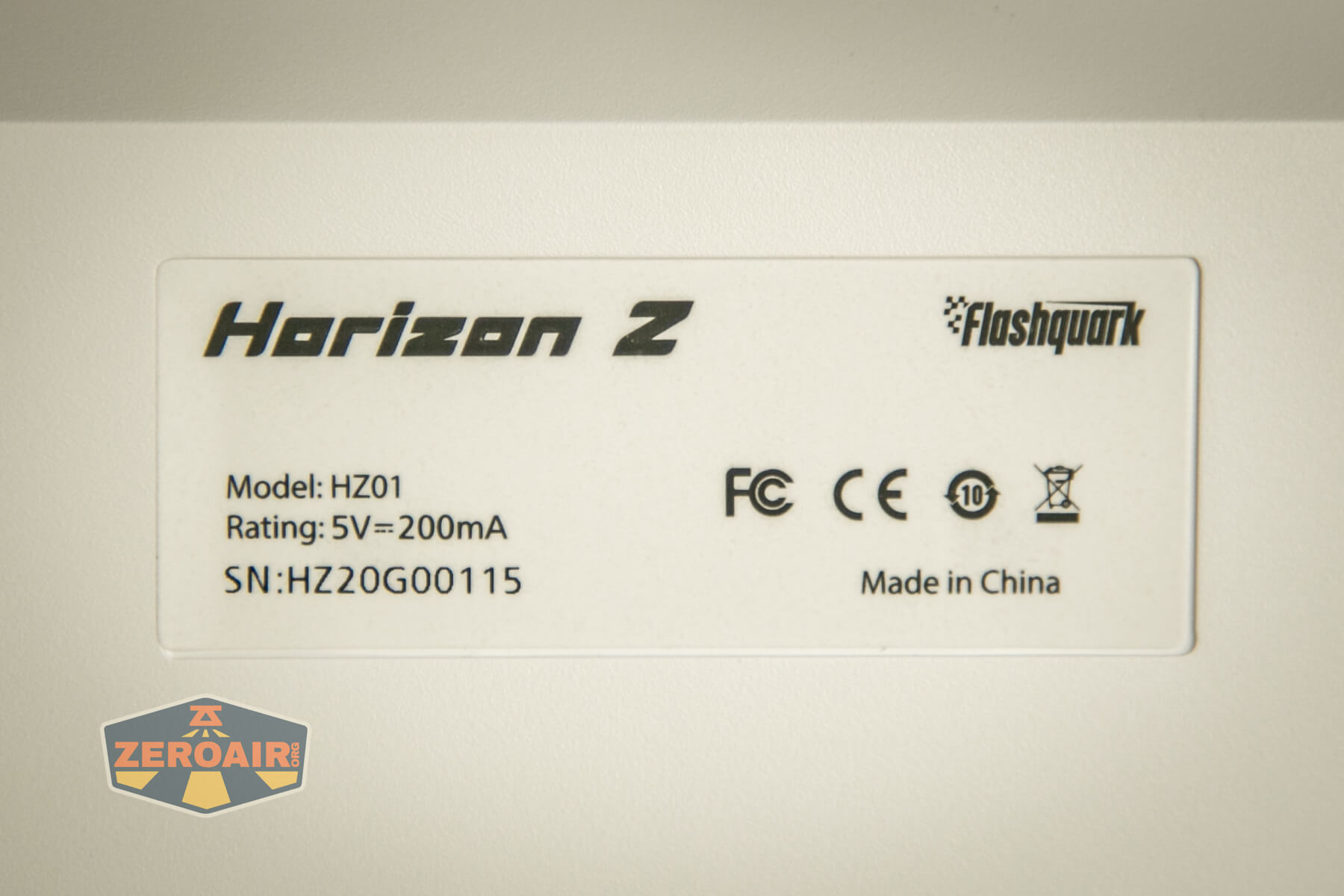
The back has a label, too, describing the product and also adding a serial number.[ez-toc]
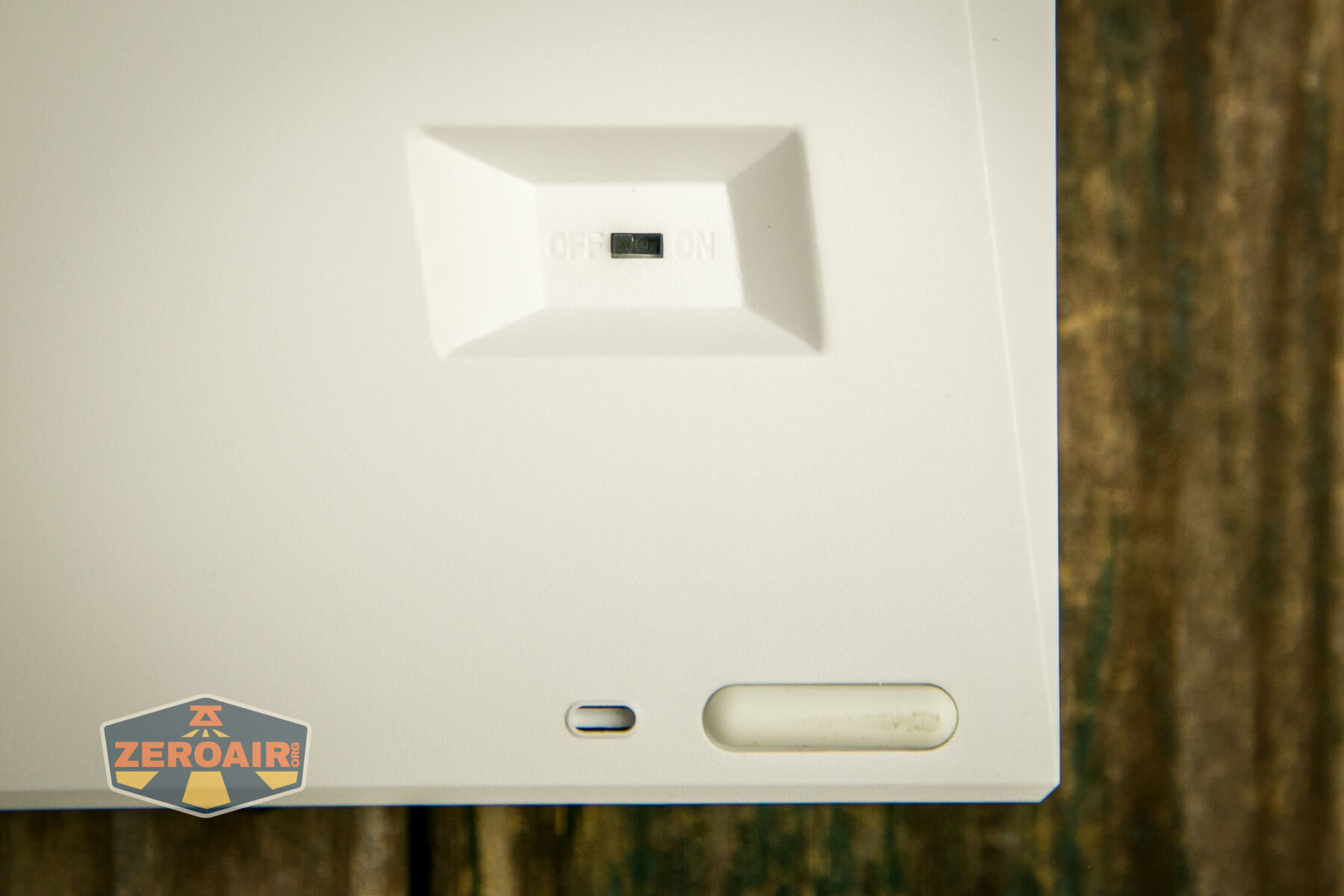
Since there’s a battery built in, it’s nice to know there’s a physical on/off switch. This is on the bottom.
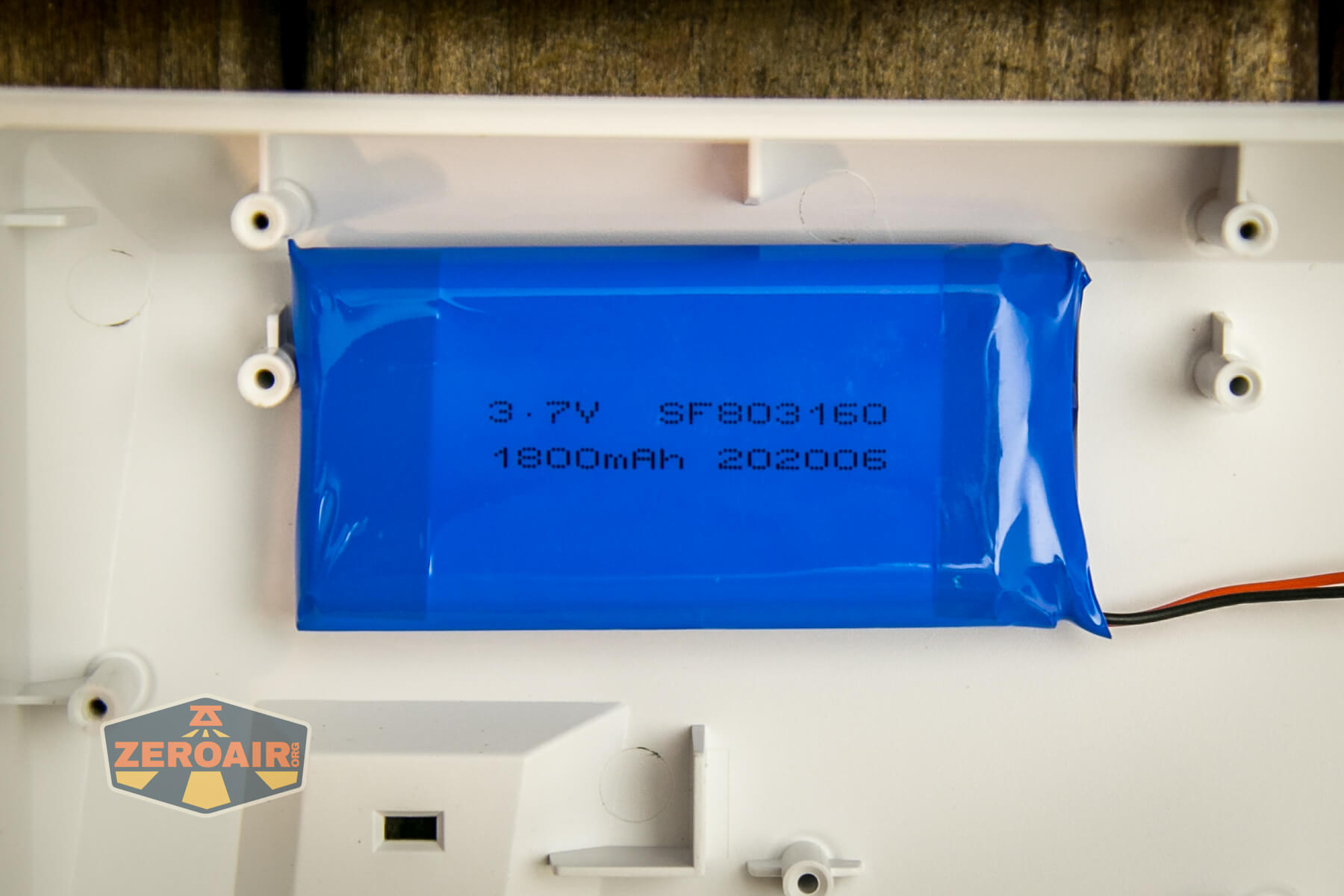
Here’s that battery – a 3.7V LiPO pouch cell, which is rated for 1800mAh. This should yield a nice long user experience, particularly if you aren’t using the RGB too much.
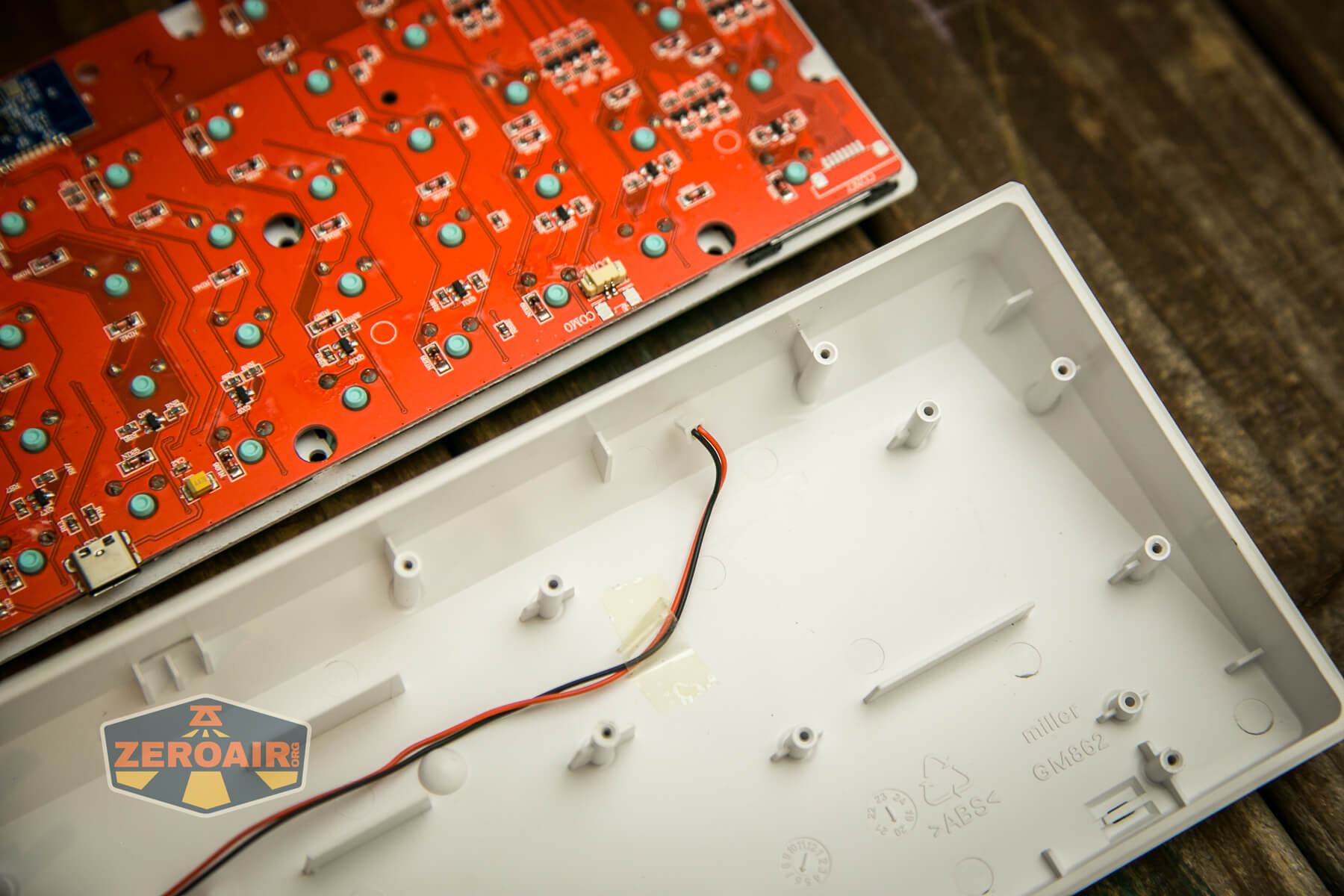
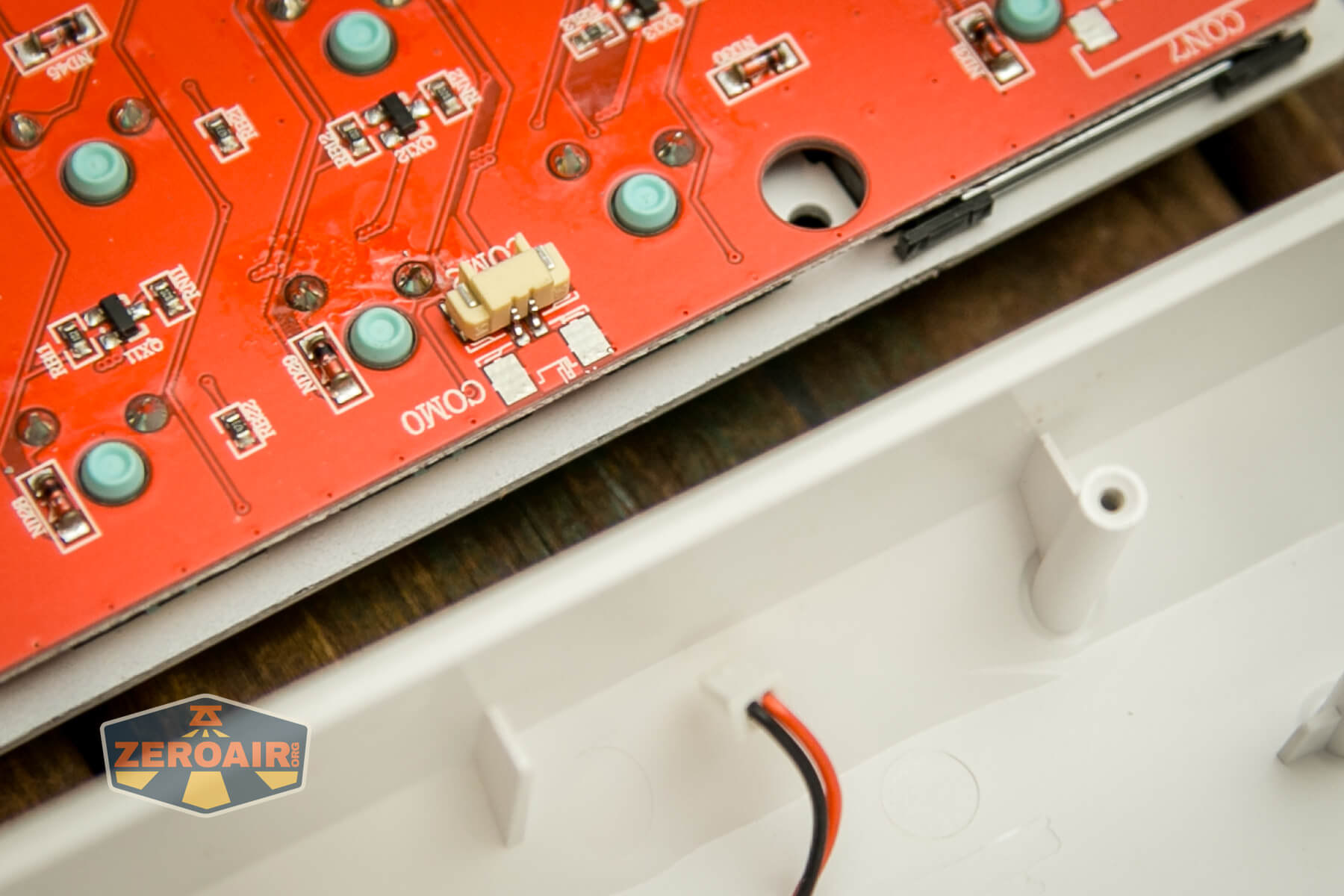
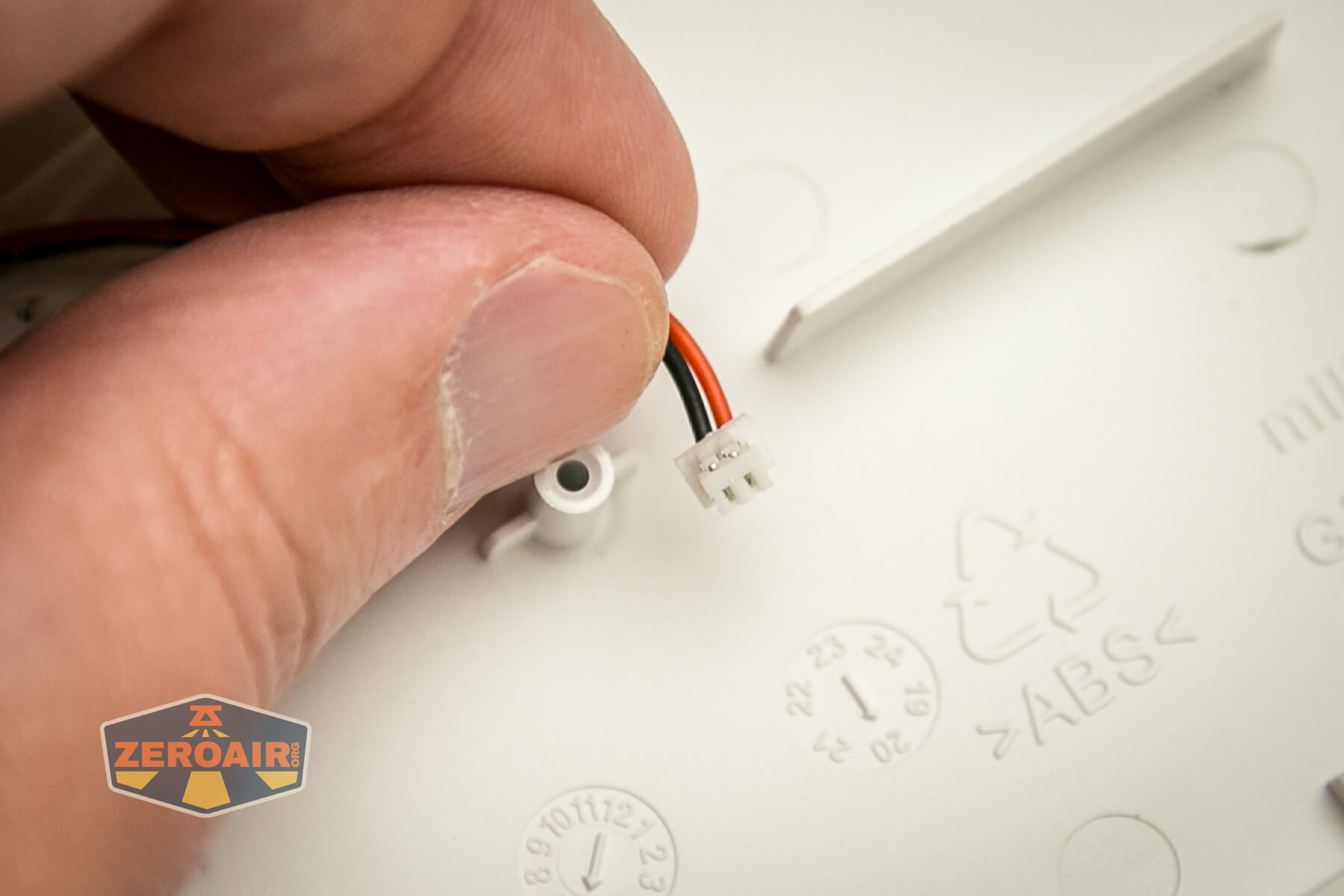
If you disassemble this board, be aware of the battery connection. It would be too bad to break this part!
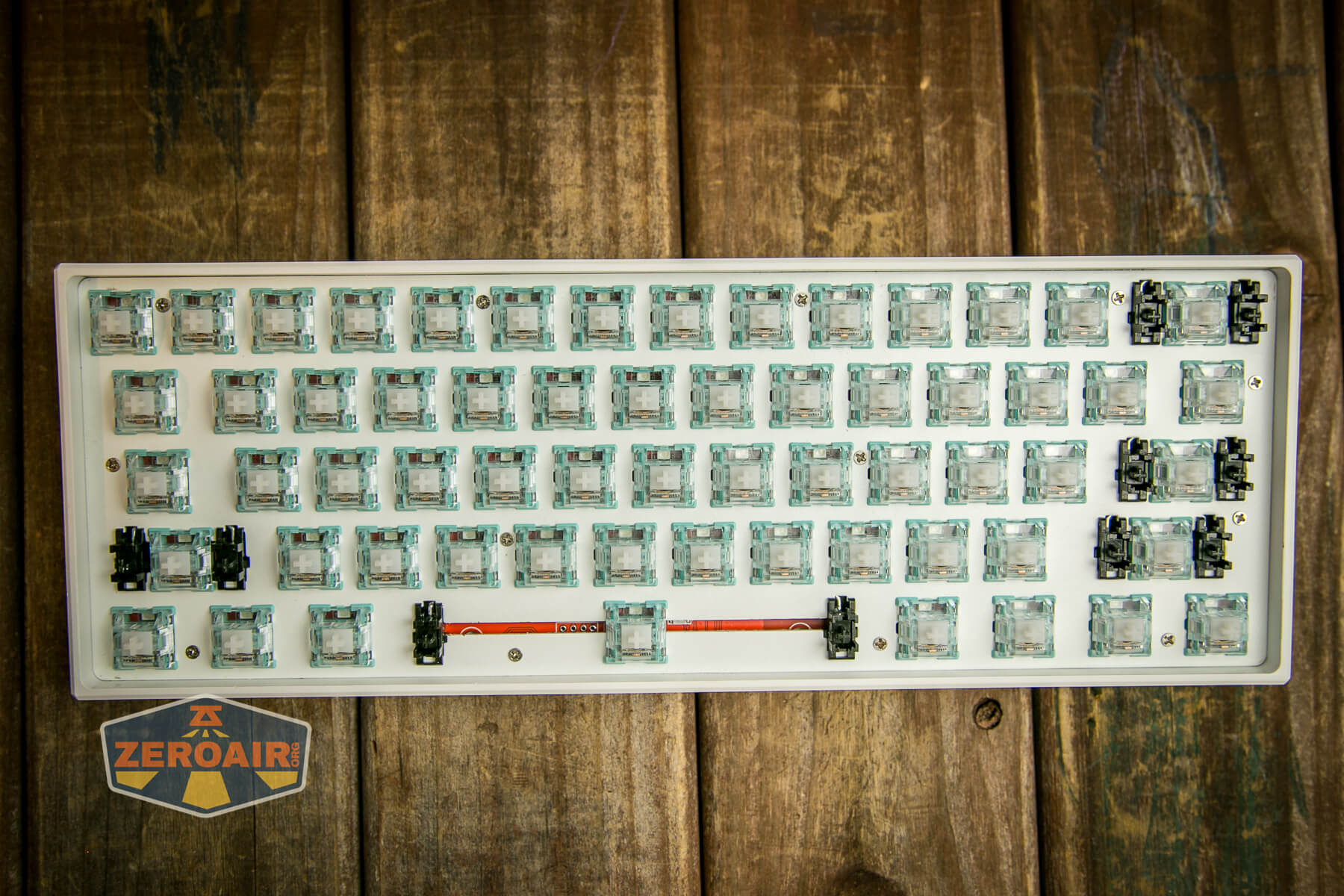
The PCB and metal plate are held in place in the case by a bunch of screws. That’s good, though, because this provides a nice, stable typing experience.
Case
The case is plastic. Often with these 60% boards, it’s possible to replace this plastic case with a metal case – a sort of upgrade, if you will.
I’m not sure if this case is upgradeable, but the screw hole pattern does not look to be the same as the Obins Anne Pro, for example.
This shot from above is included just so you can see the ABS plastic logo.
PCB / Controller
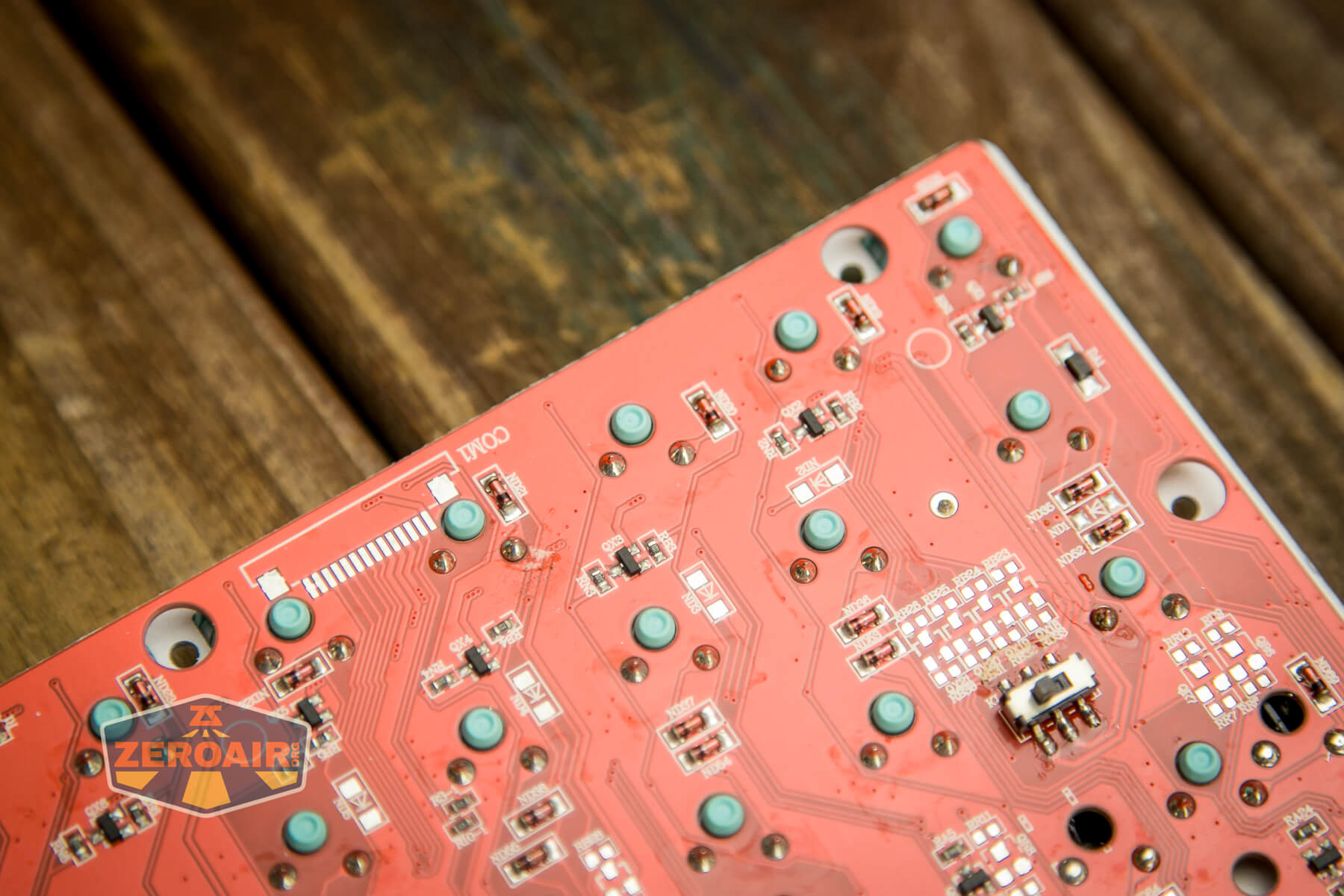
The PCB is red. Woo red! All the solder work looks just fine, and indeed, my keyboard works perfectly.
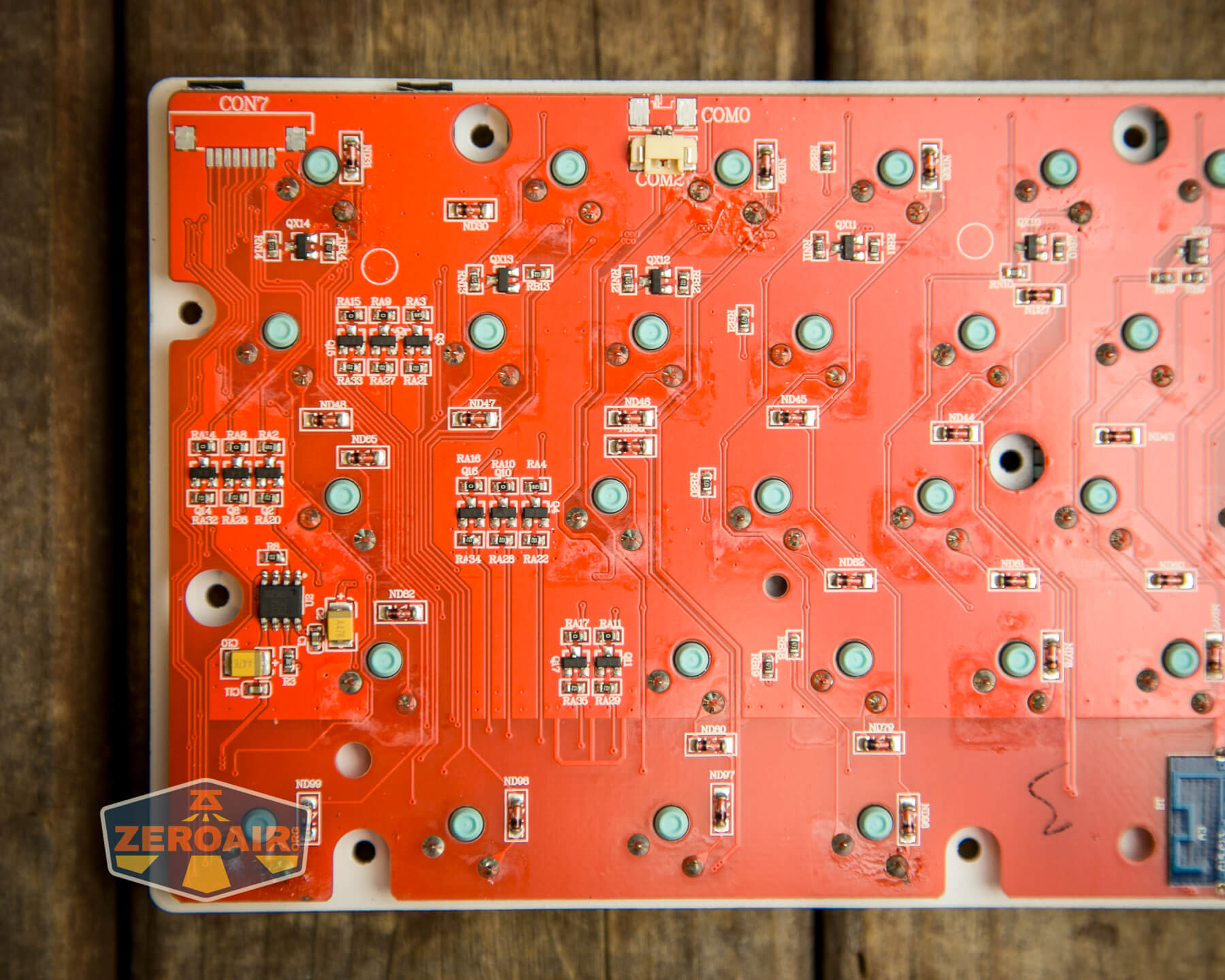
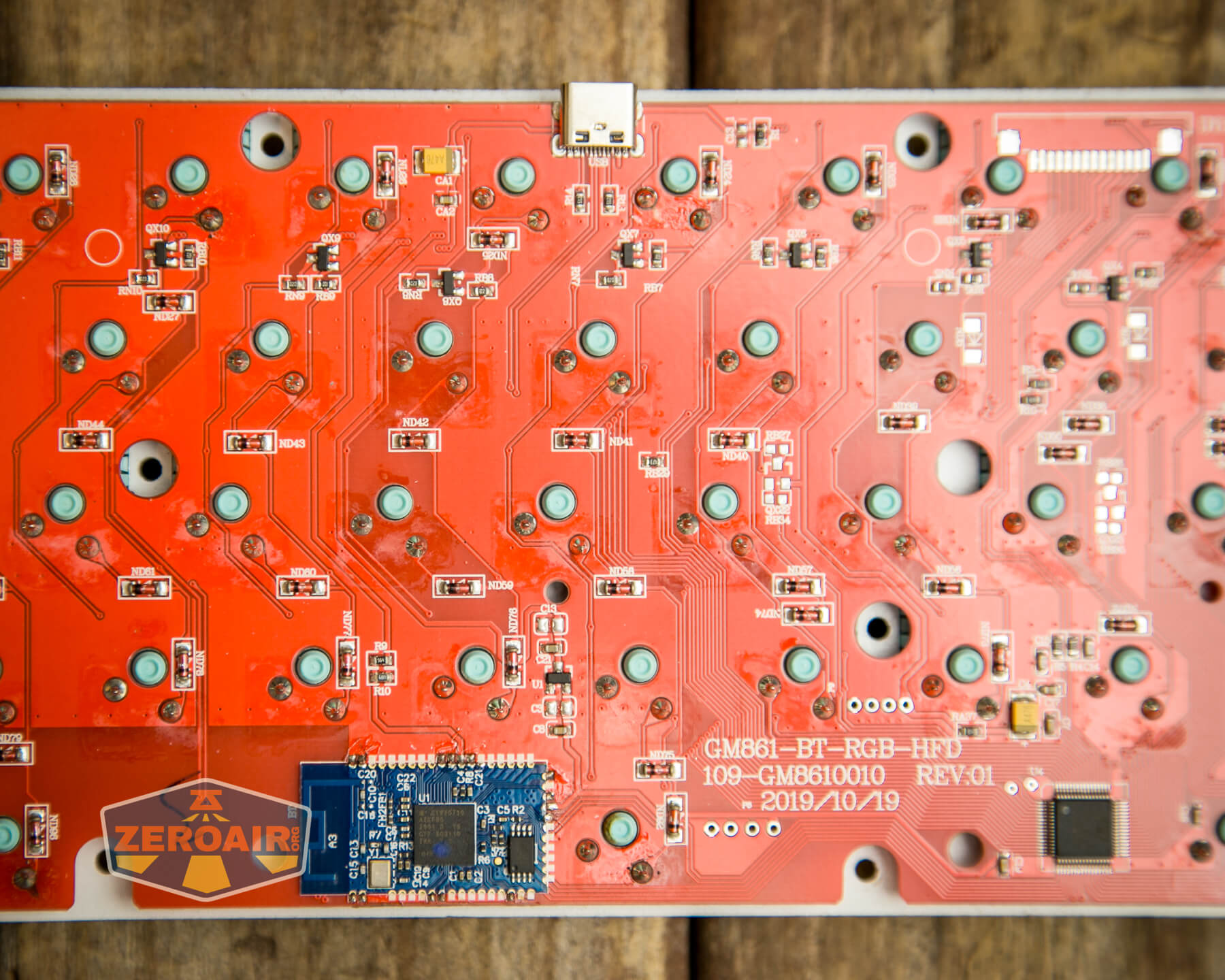
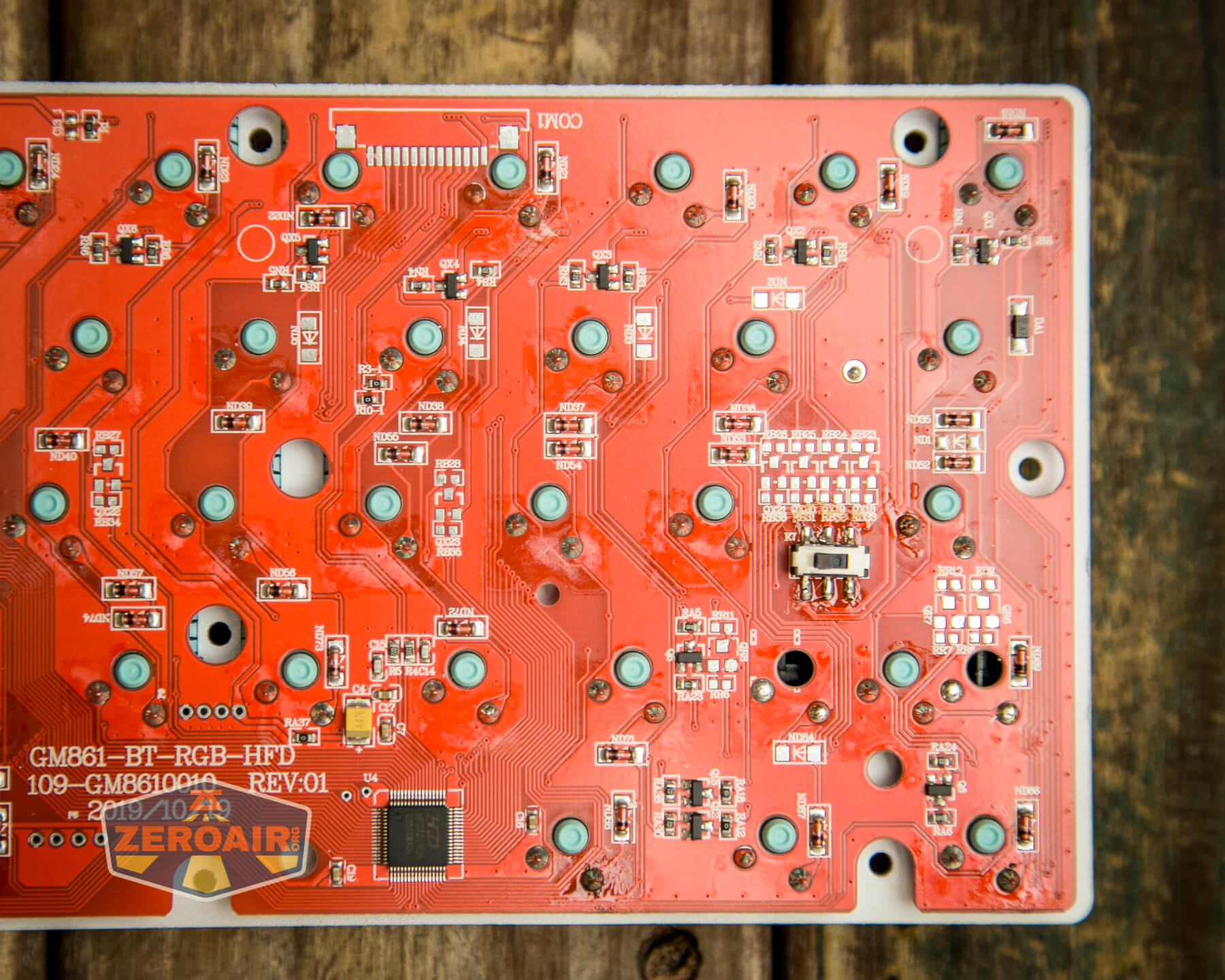
There’s a bit more flux left over than I really love to see, but this shouldn’t affect functionality.
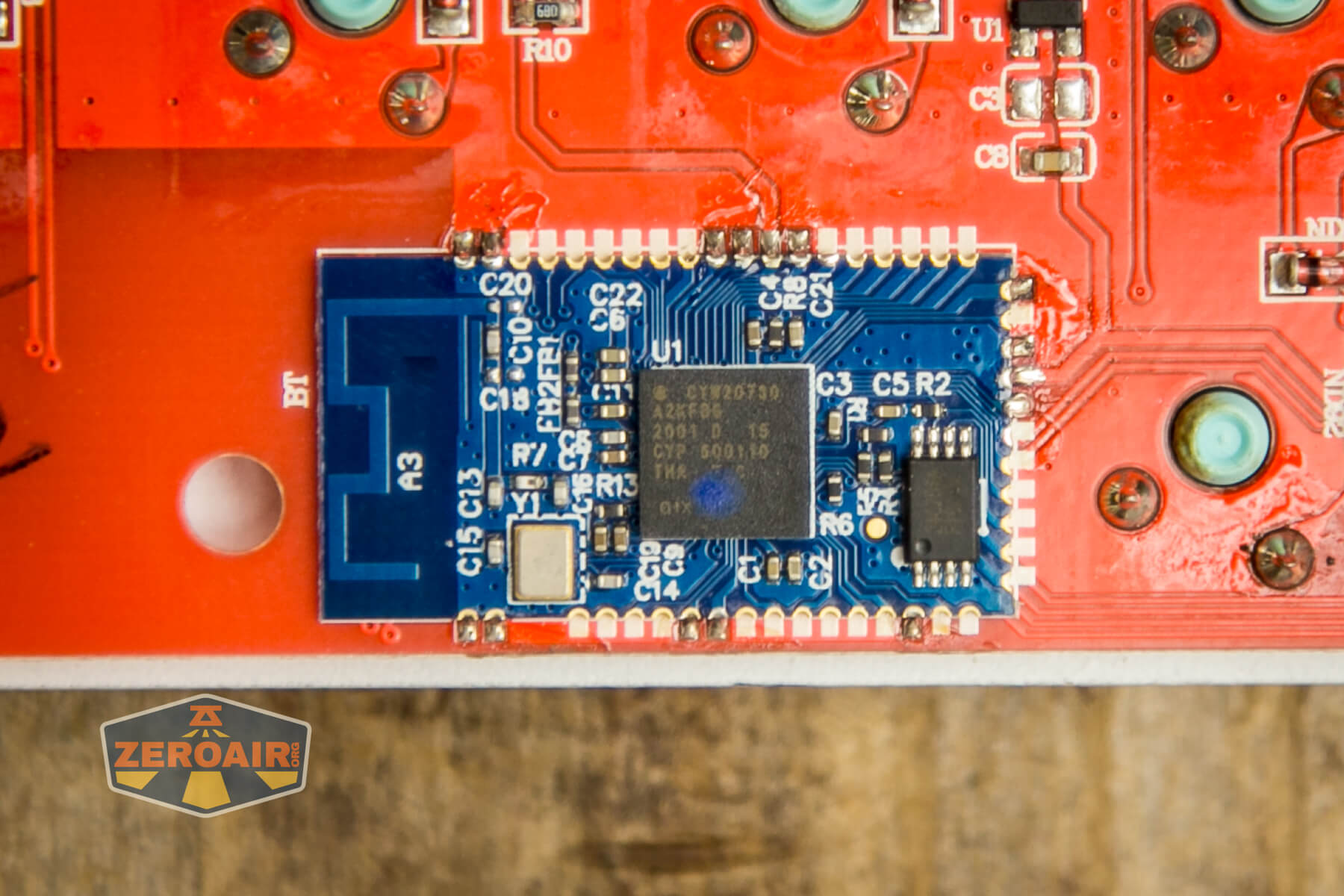
Here’s the microcontroller! Flashquark says this board can be flashed with QMK, which is a great option! This little thing is also the Bluetooth connection.
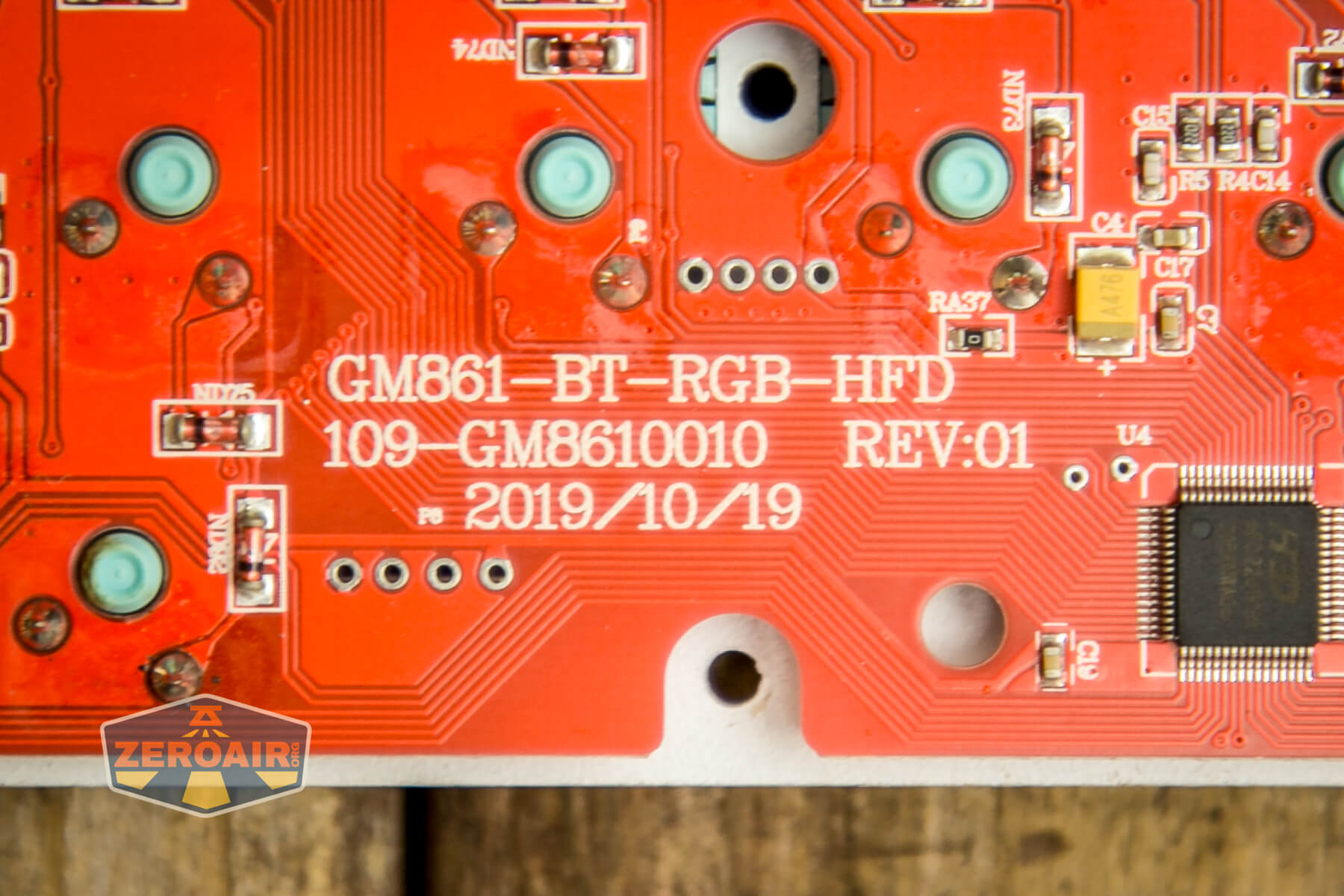
Here you can see the board details: GM861-BT-RGB-HFD, 109-GM8610010, REV:01, 2019/10/19.
Layout and Keycaps
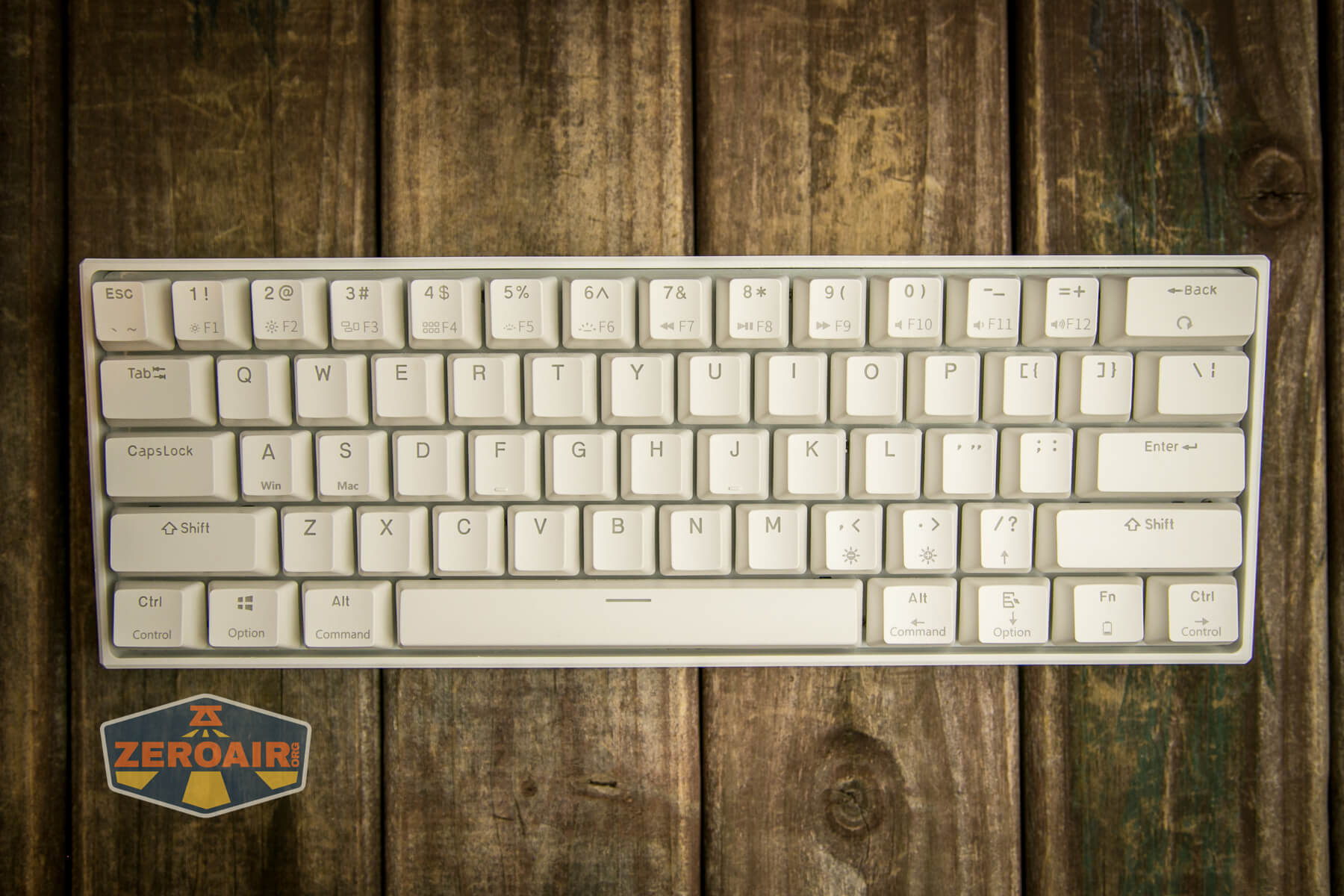
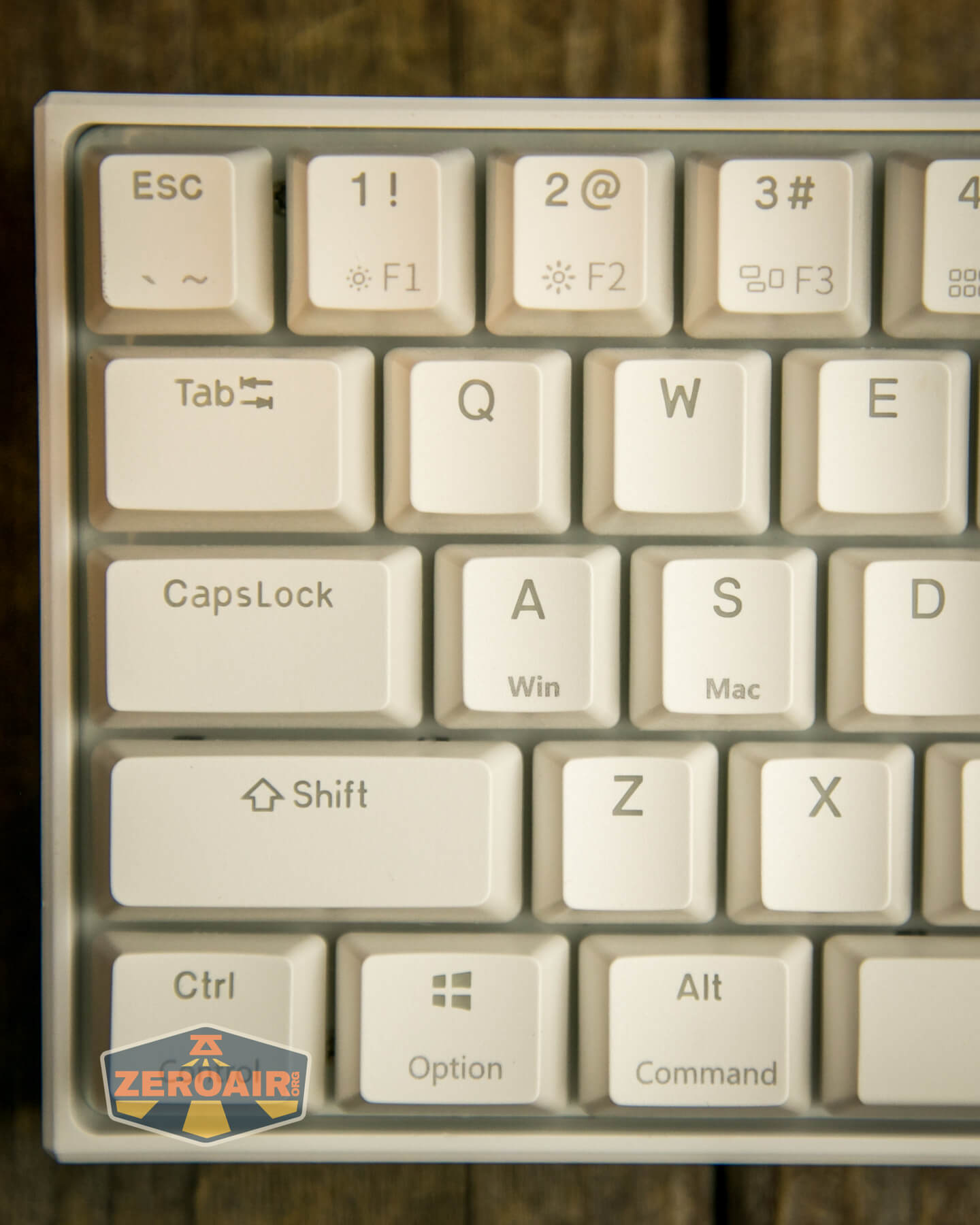
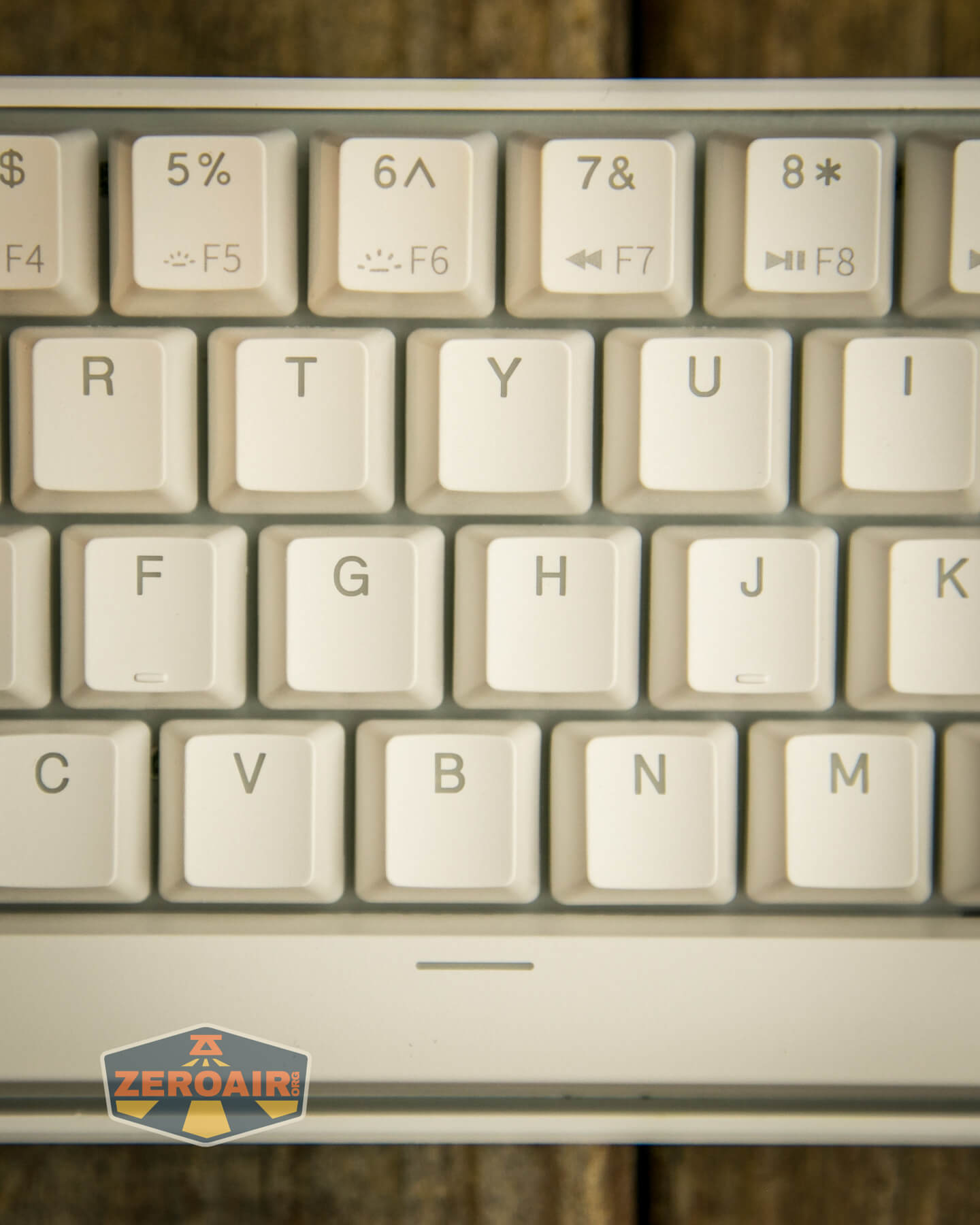
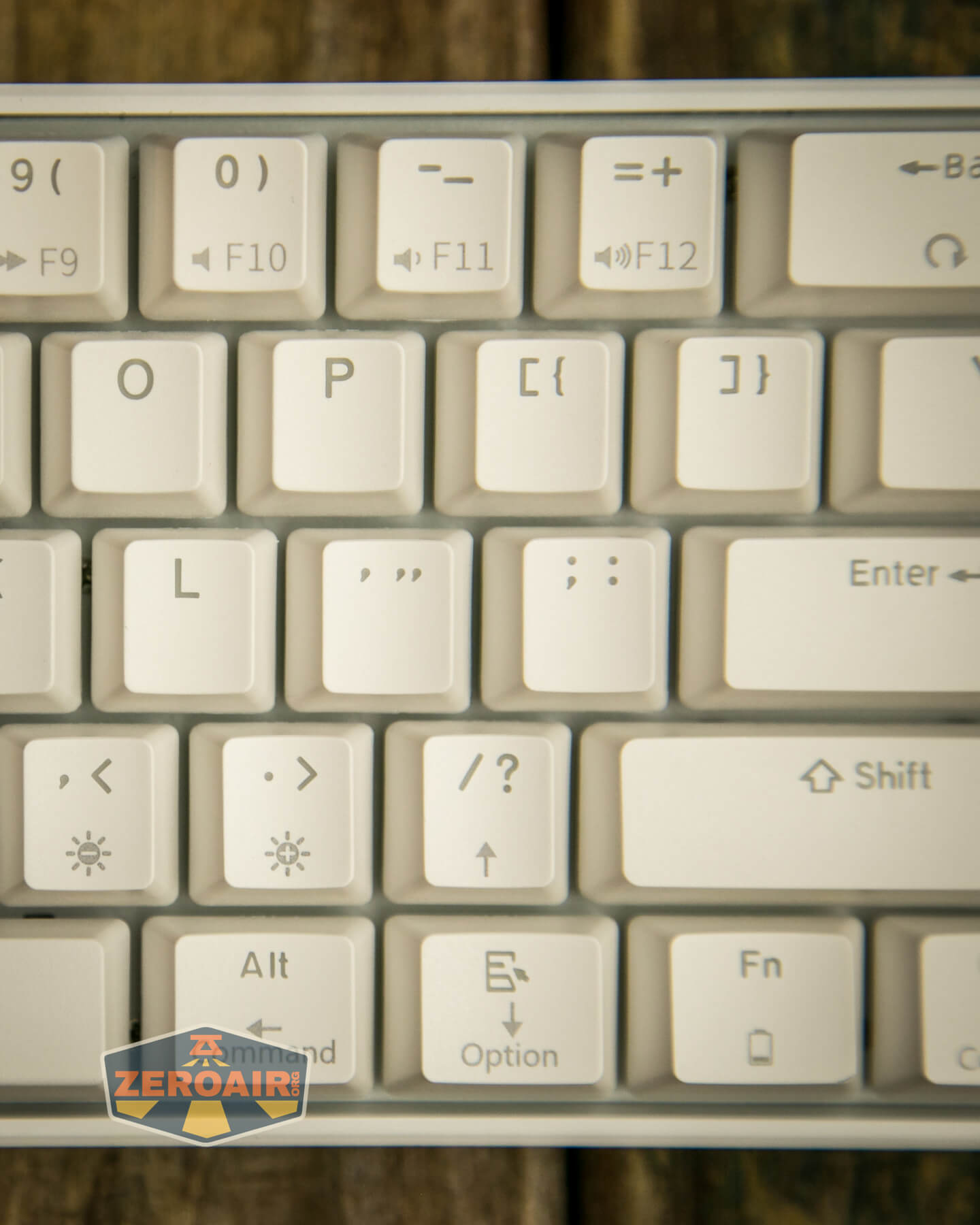
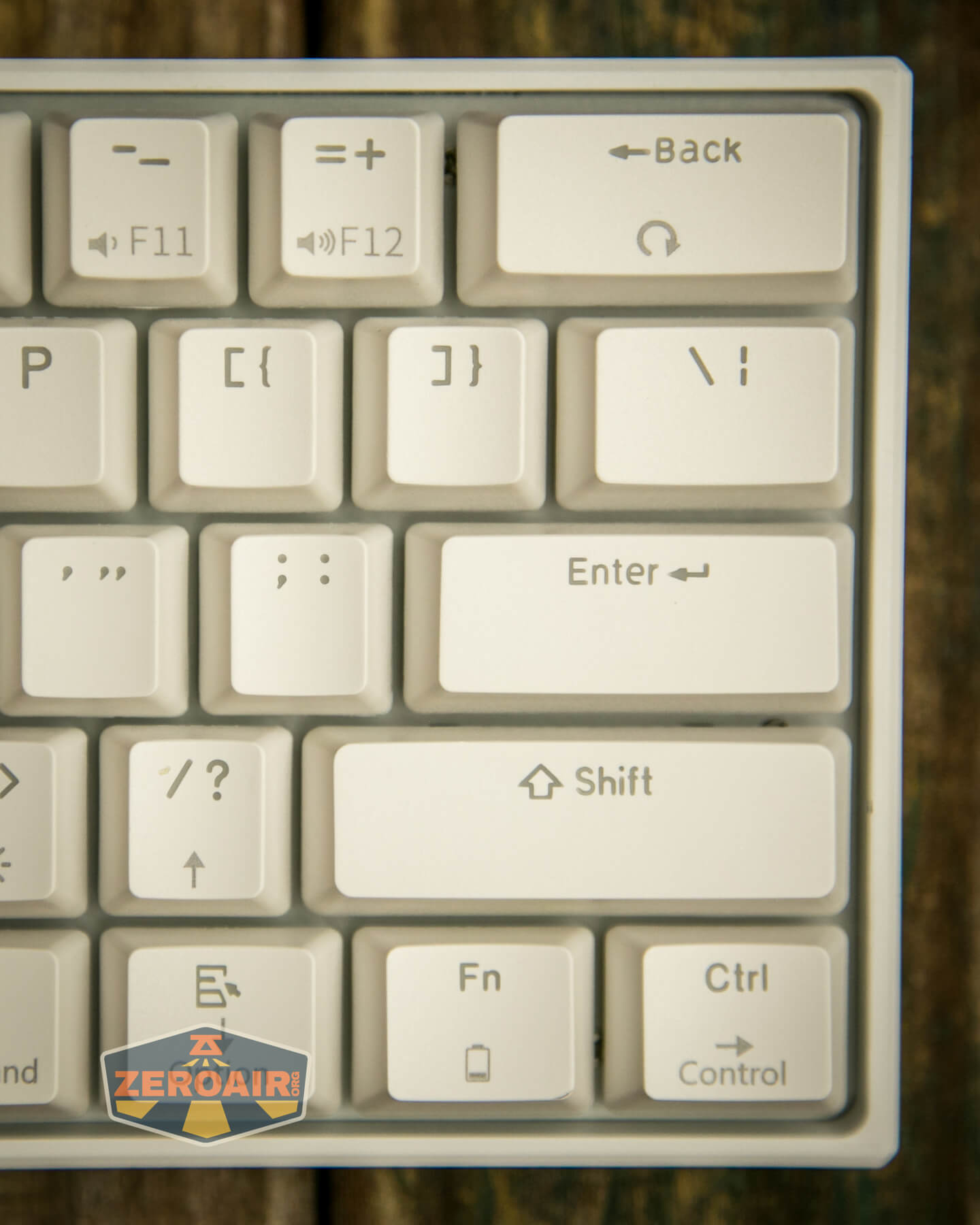
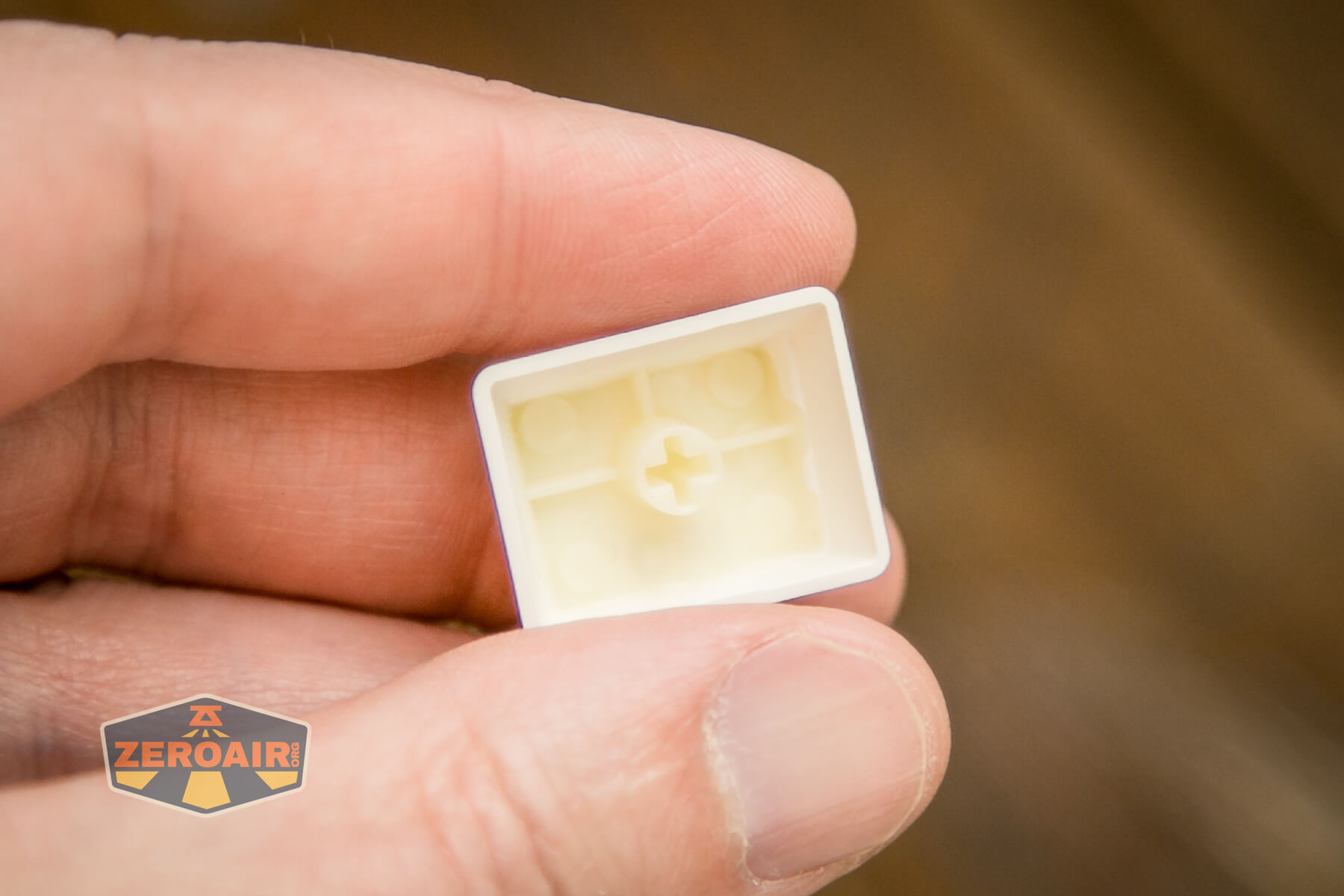
The keycaps are double-shot (most likely) ABS. I can’t see that officially, but that’s what they look and feel like, and probably are. One very nice thing about this budget board is that the font isn’t horrible. I won’t claim it’s my favorite, but it’ll do.
The stems are also Cherry MX compatible, so you’re free to replace the caps with many custom caps available today. Note that the rightmost Fn and Ctrl are swapped in this (and many) of the photos. I fixed this after many of the photos. It really did confuse testing.
The layout is fairly standard, with a couple of exceptions. Most people immediately note in reviews that there is no tilde (~) key. That’s a pretty huge deal to me since I use that often. Also, the arrow keys are hidden under a layer, which is also a huge deal to me. Those are things you’ll just have to accept. Both the tilde and arrows are hidden under a function layer and are fairly easily accessible. Edit: See the “Programmability” section below!
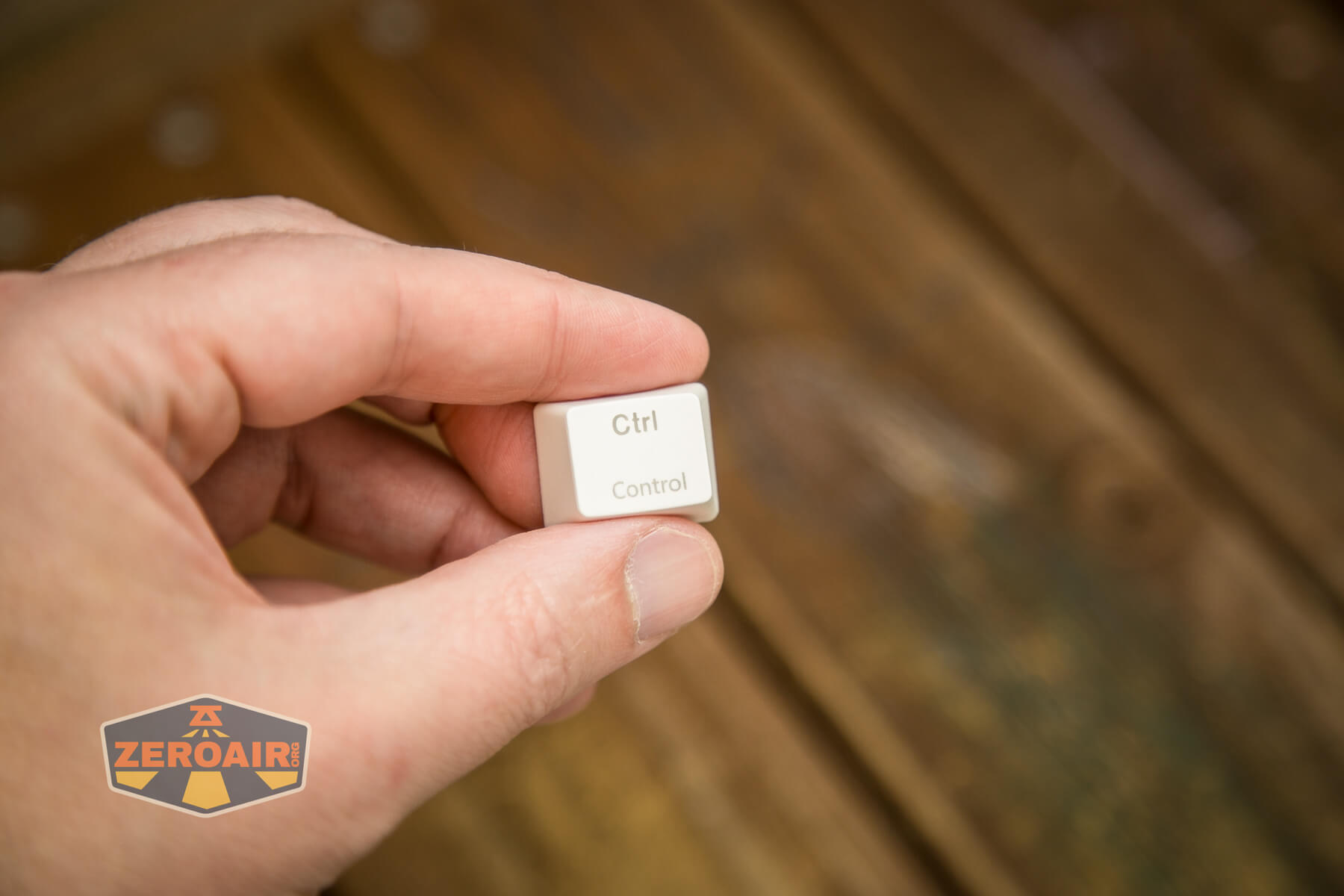
Worth mentioning is that part of the caps are double shot, but part (the first Fn layer, at least) is screen printed. So the main letter (“L” for instance) will shine through, and you can see the LED, but the “HOME” below the L is not doubleshot – it’s screen printed – and the LED will not shine through. Some keys have multiple screenprints – the numbers, for example.
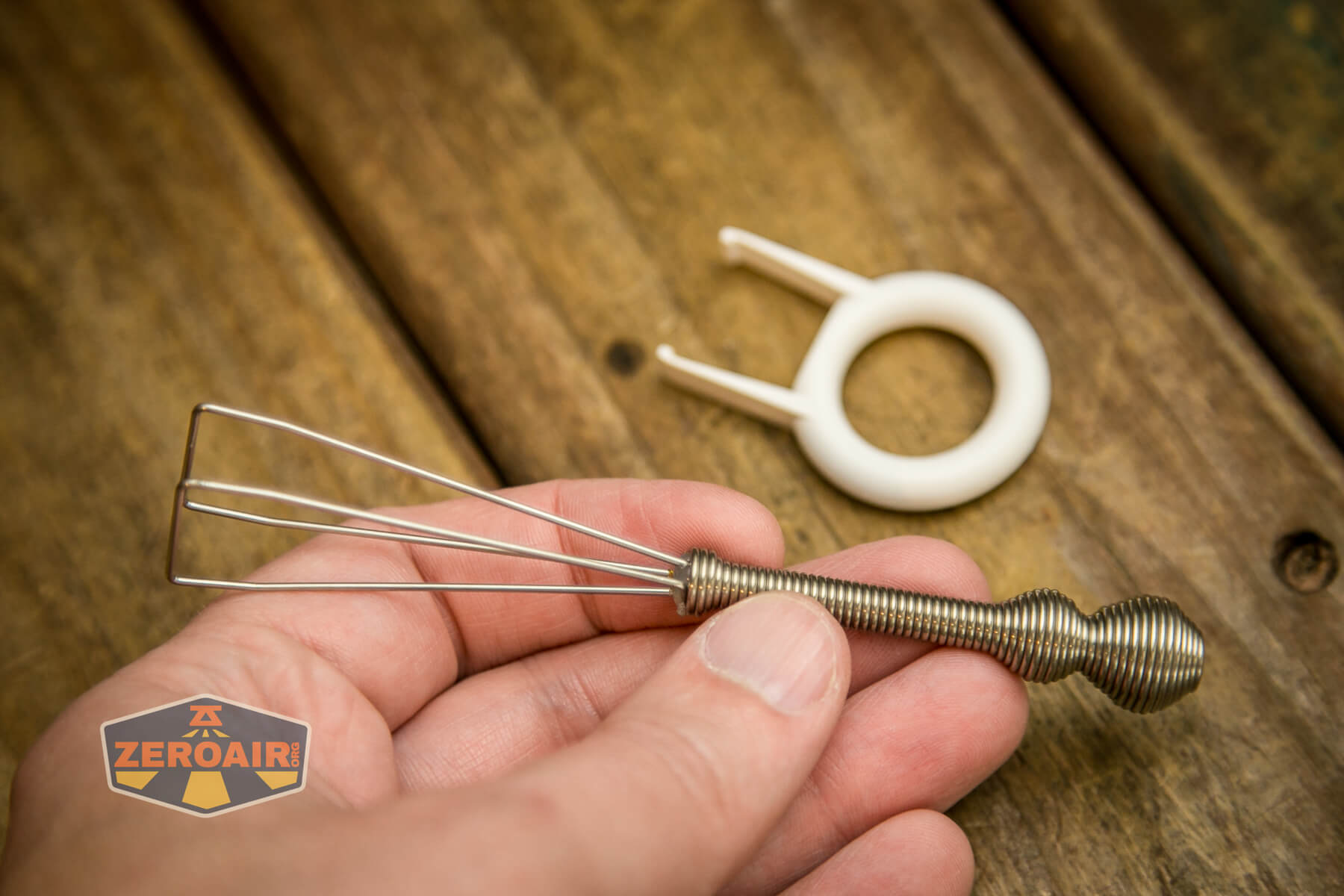
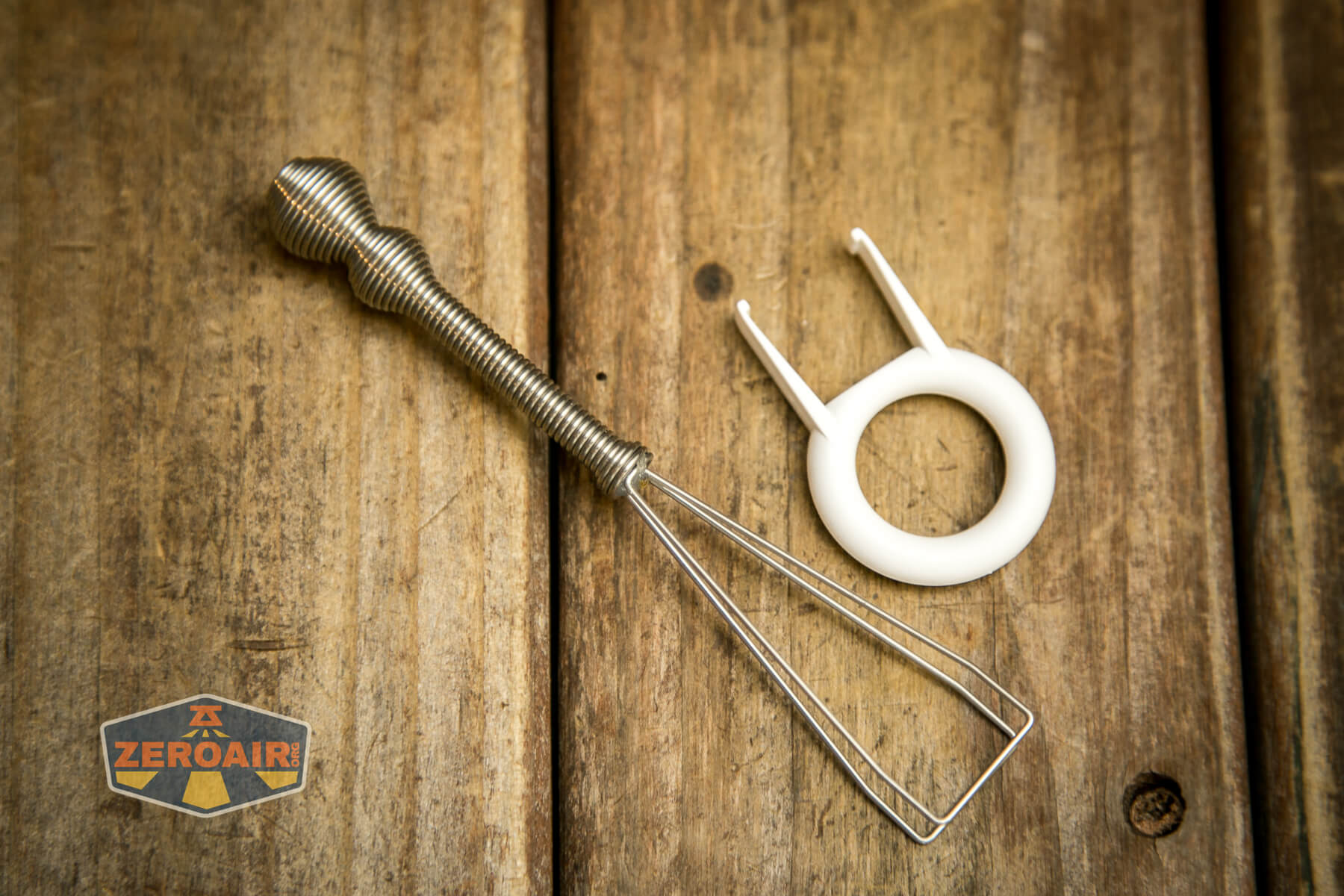
A keycap puller is included. In fact, two are included! The plastic is more standard, but this metal one is probably a bit safer for the caps. Using this makes you less likely to break a stem (I think!)
Life ain’t nothing but Switches and money
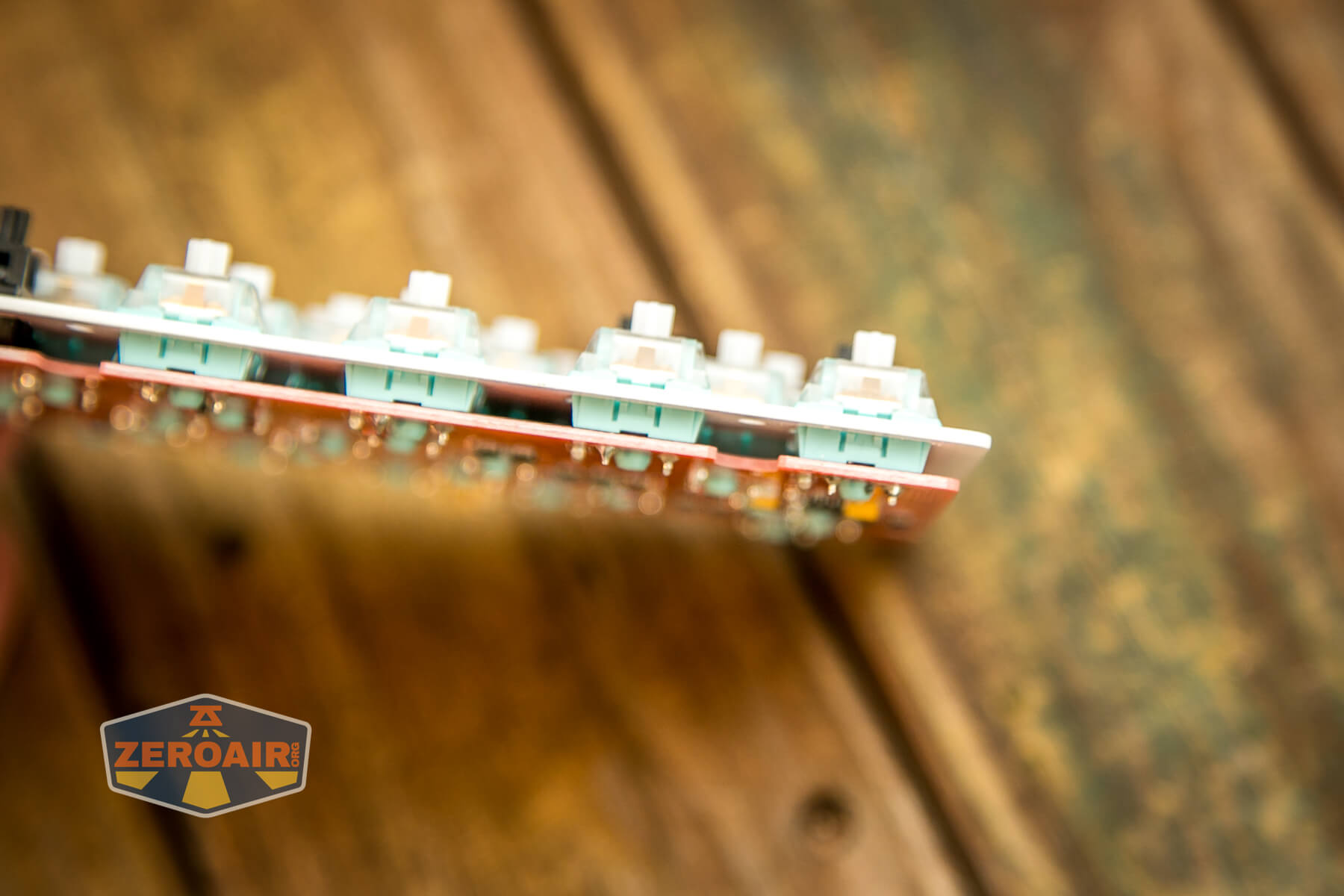
The switches used here by Flashquark are Outemu 62g Silent Sky tactile switches. They say this makes for “stealthy, tactile keypresses.”
Whatever the case, I do find them to be pleasant. My normal board has Cherry Speed Silvers. I won’t say I type lightly, but I can say that the Outemu Silent Sky tactile switches are very nice to type on.
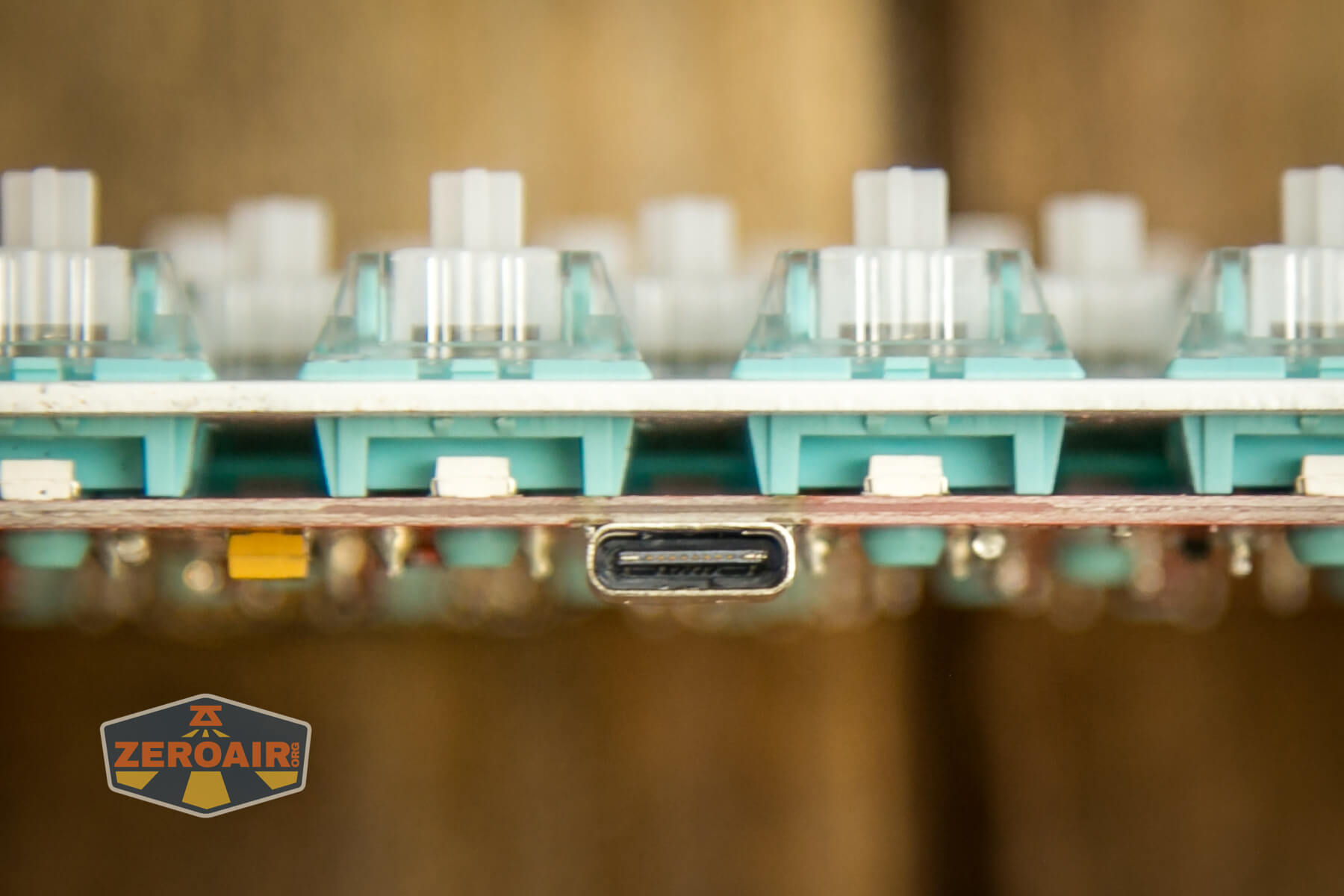
These switches are soldered to the PCB.
Here’s a typing example:
Connectivity
Briefly, here are the connection options: Wired (USB to USB-C). Bluetooth (5.1).
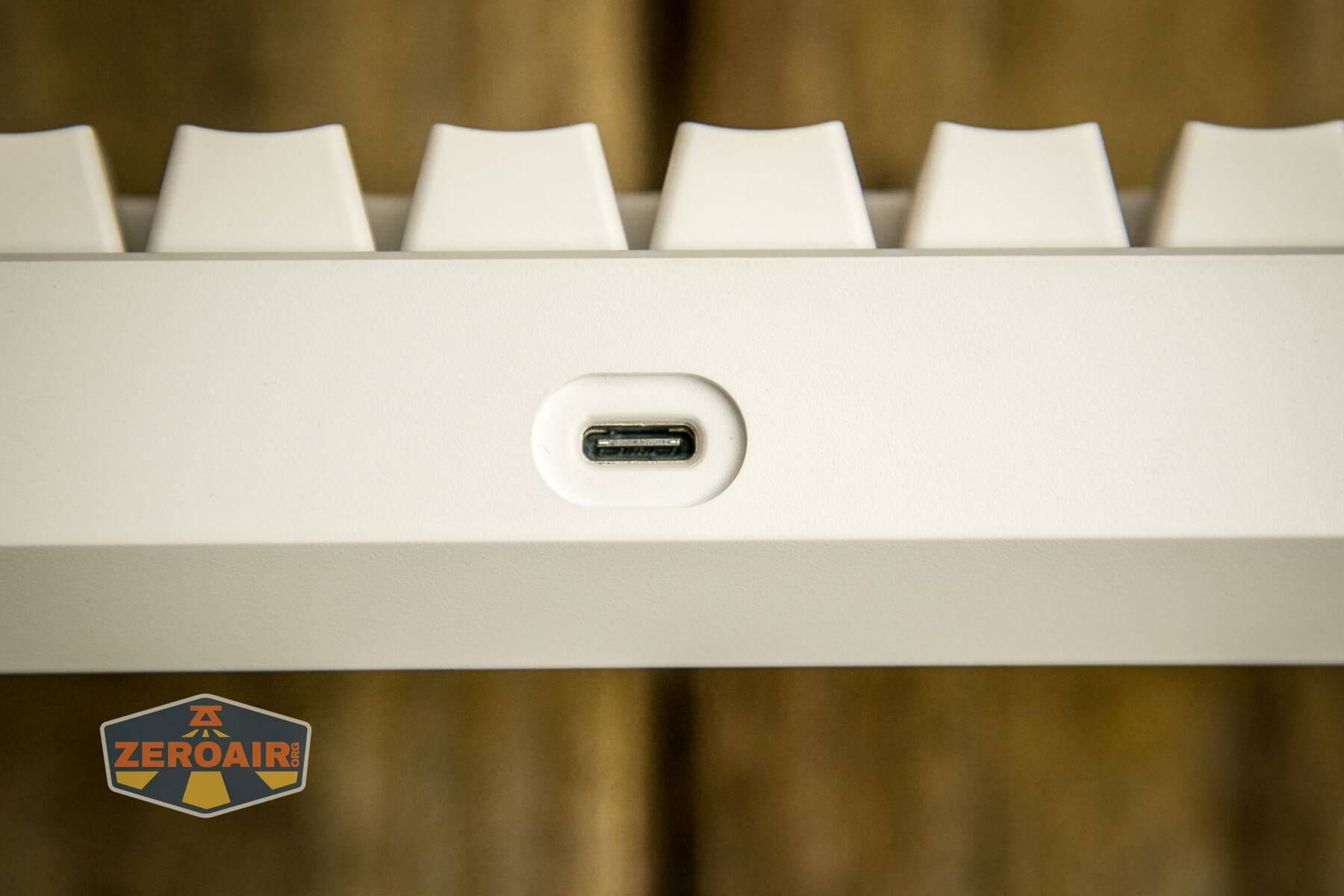
The included wired support is for USB-C, which is nice and current.
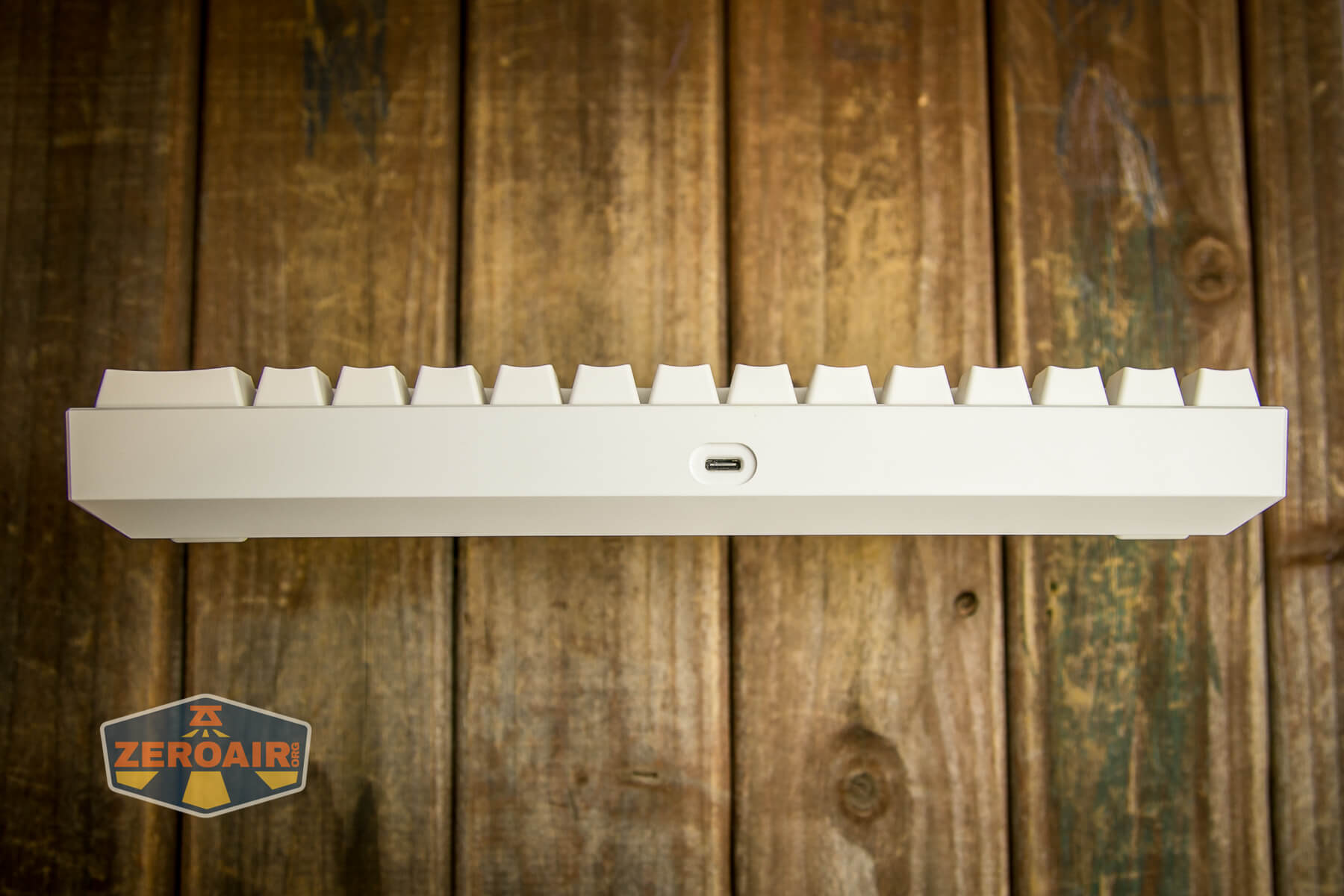
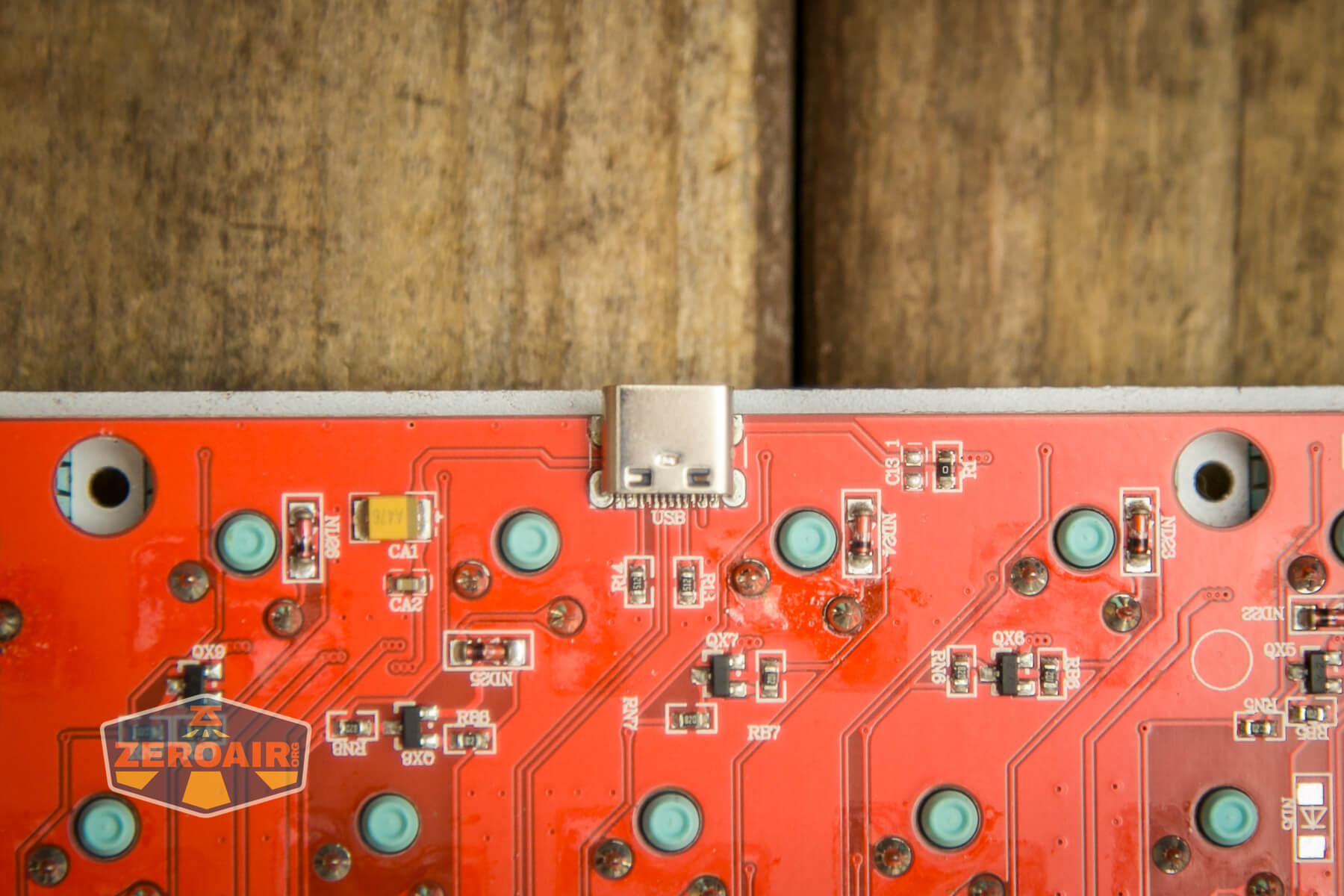
This C port is right in the center of the back.
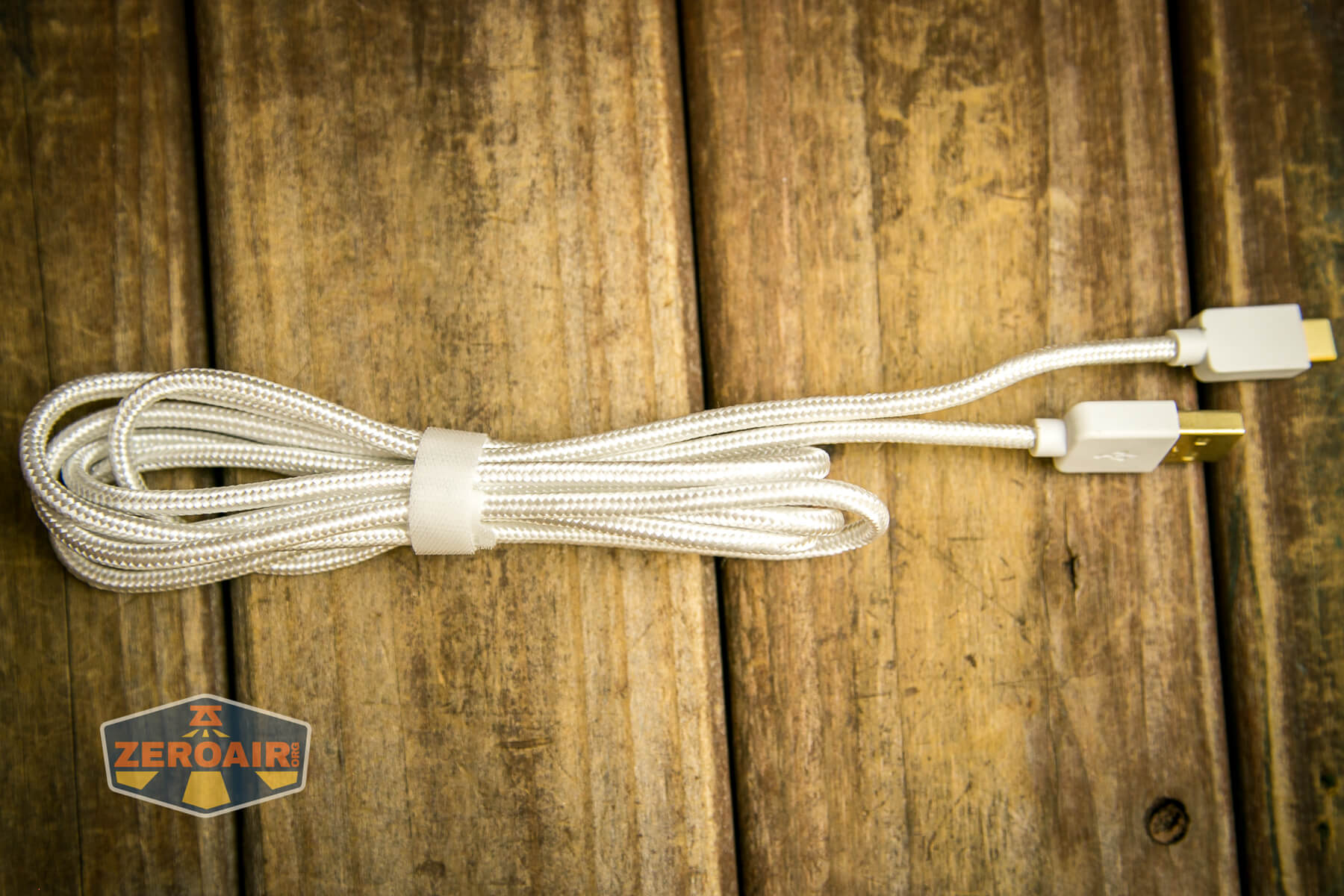
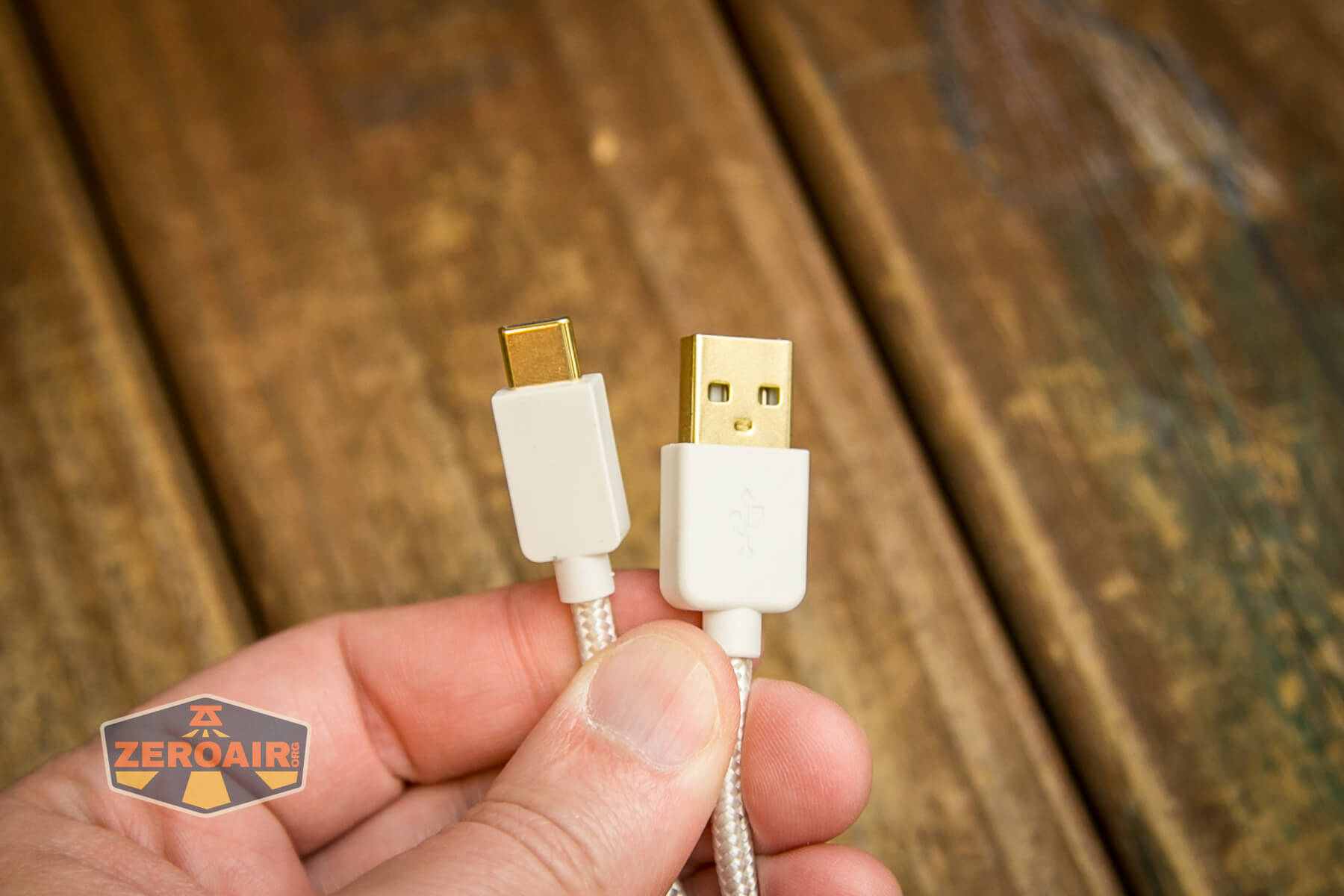
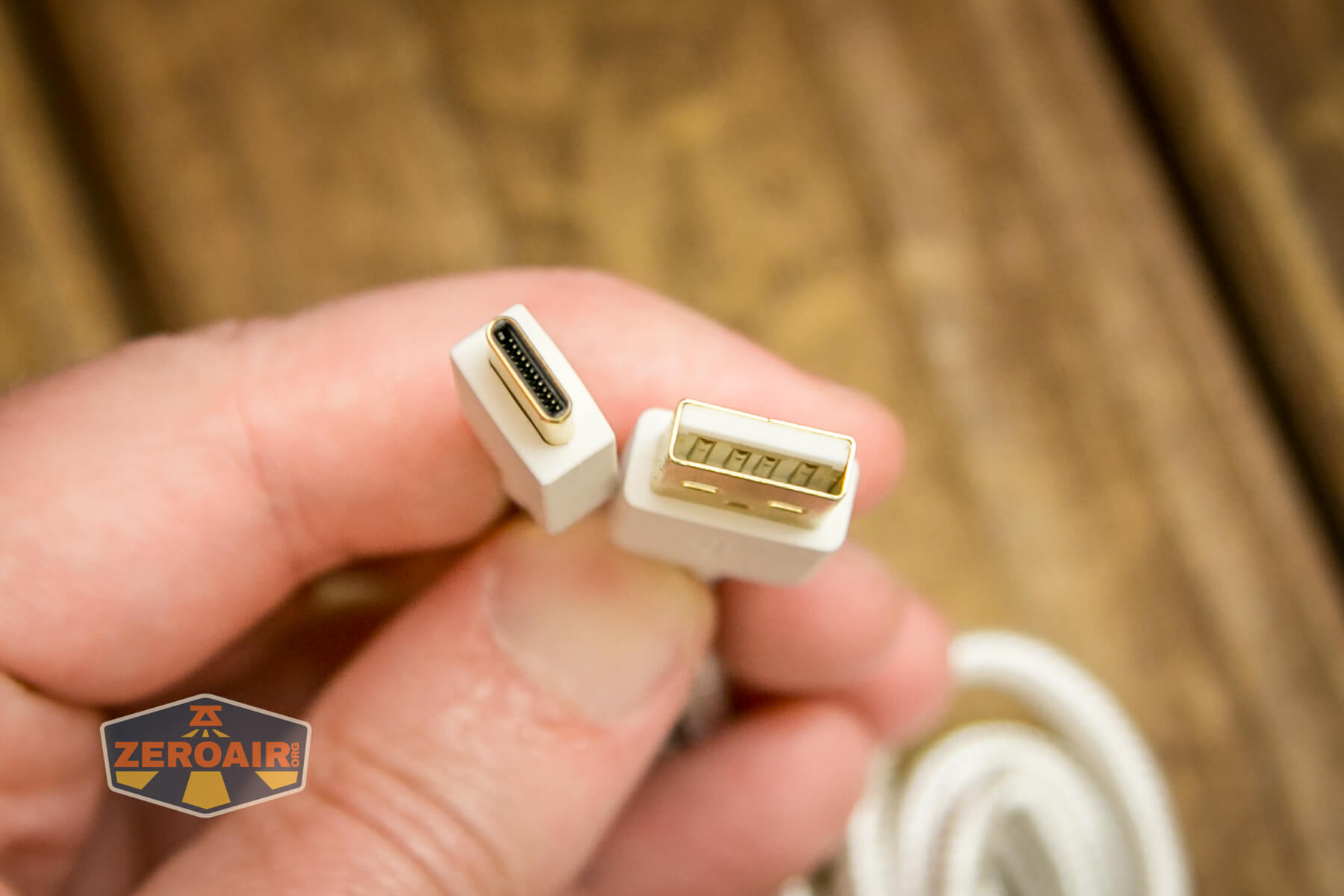
Flashquark includes a cable. It’s a nice braided cable with USB-C on the keyboard end and USB on the other end.
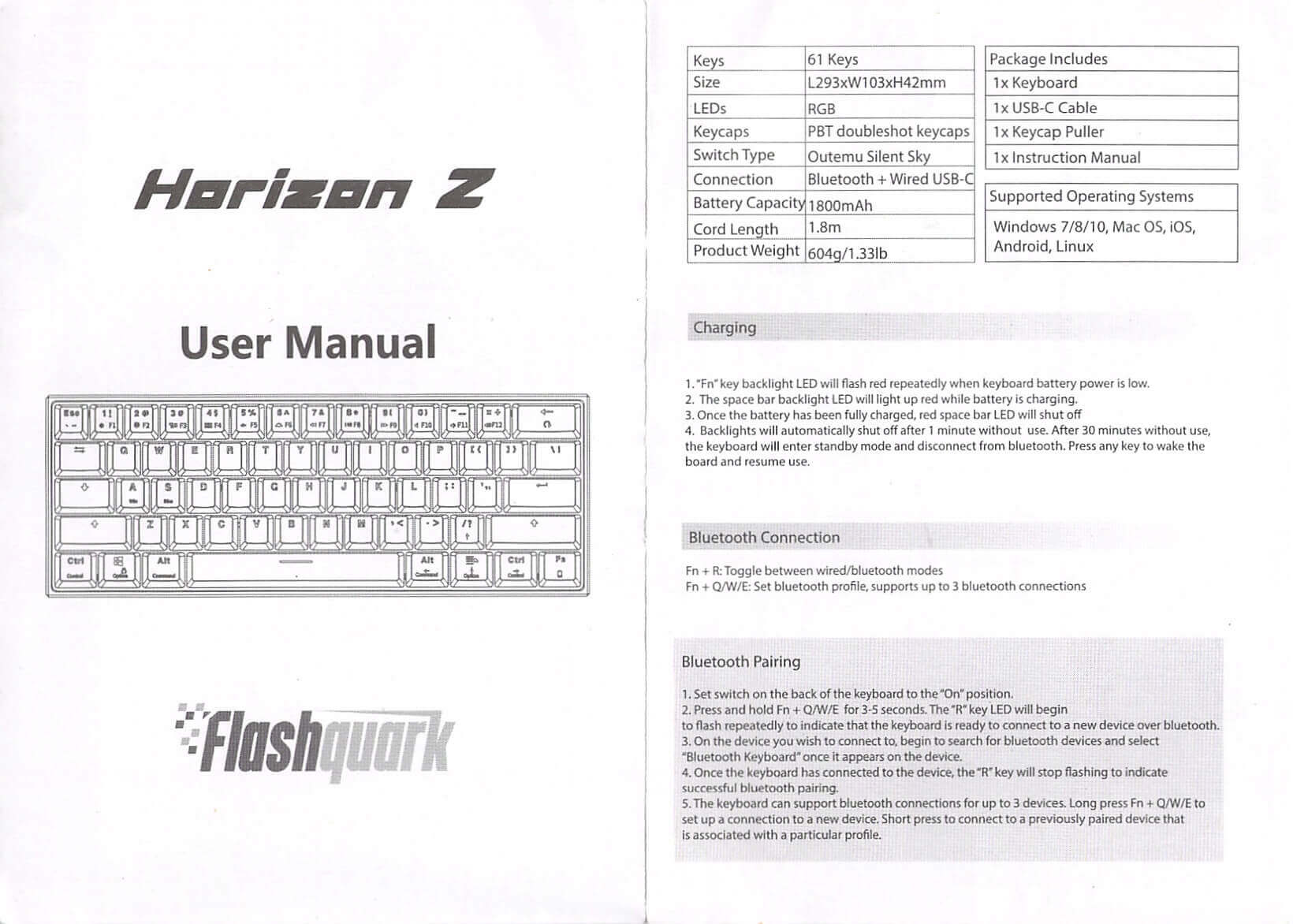
Bluetooth is, of course, a little more work. Before getting started, I’d really recommend fully charging the Flashquark Horizon Z mechanical keyboard. The cell is 1800mAh, and the Horizon Z charges quickly enough. Once charged, tap Fn+R to switch between wired and wireless connectivity. Tapping Fn+Q/W/E (Q, W, or E) will operate the Horizon Z to save a device in that Bluetooth slot. At this point, I open the Bluetooth menu on my MacBook and see the device, which has a “Pair” button beside it. Click Pair. Pairing should then be nearly automatic.
User Interface and Operation
The user interface, as I always say on keyboard reviews, is the switches. Pretty obvious, right?
I’ll mention here that it’s possible to switch between a Mac and Windows interface. Fn+S gets the Mac OS mode, while Fn+A gets the Windows mode.
Programmability
There’s some level of programmability within the Flashquark Horizon Z mechanical keyboard. Macros can be recorded, for example. I believe this is strictly for programming RGB backlighting, though, so if you wish to have some custom program saved, you may do so. As far as saving macros that can automatically type a sentence or the like, I don’t believe the Horizon Z will do it.
RGB
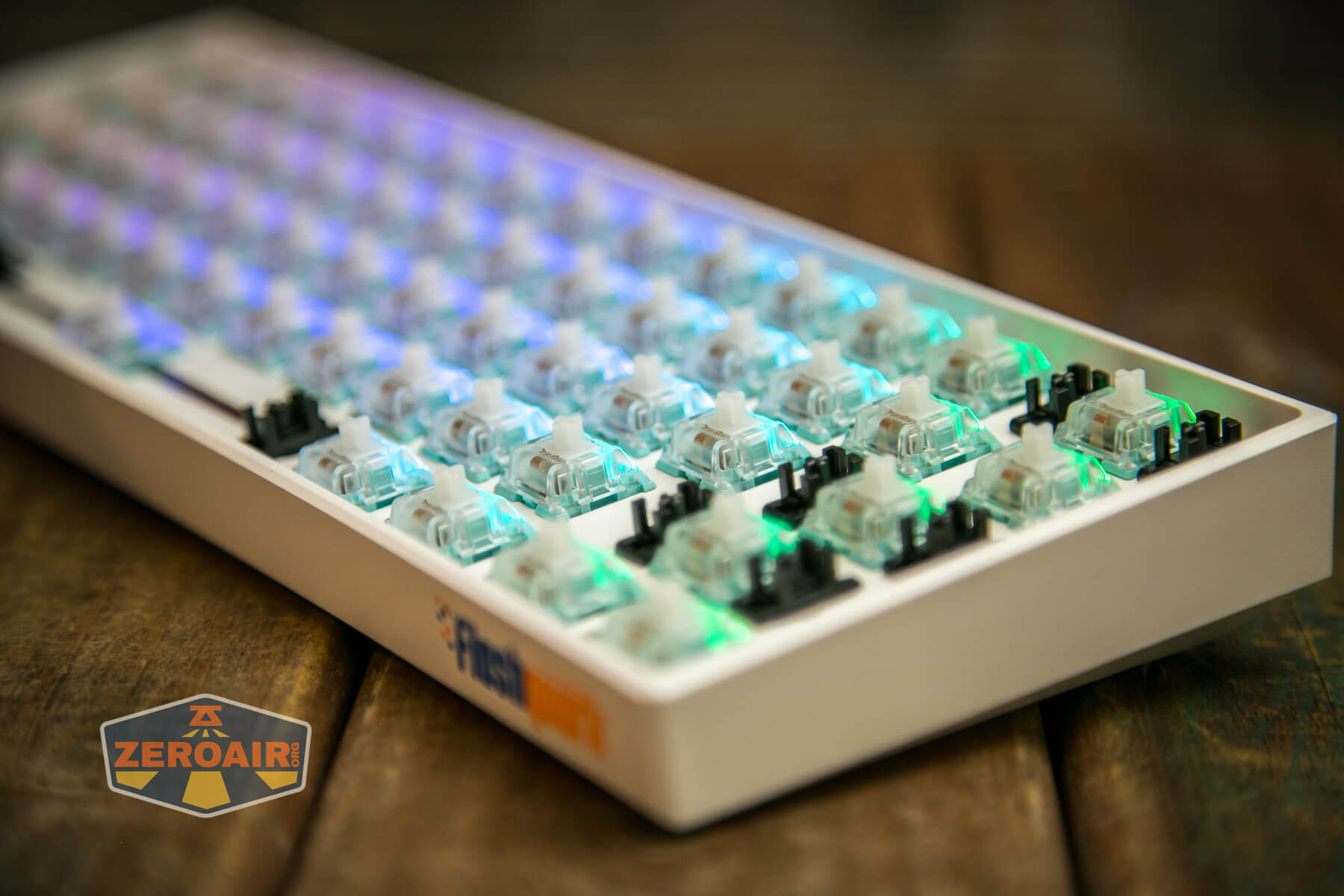
Each switch has a north-facing RGB LED. Together, they can make quite an array of color features on the Horizon Z.
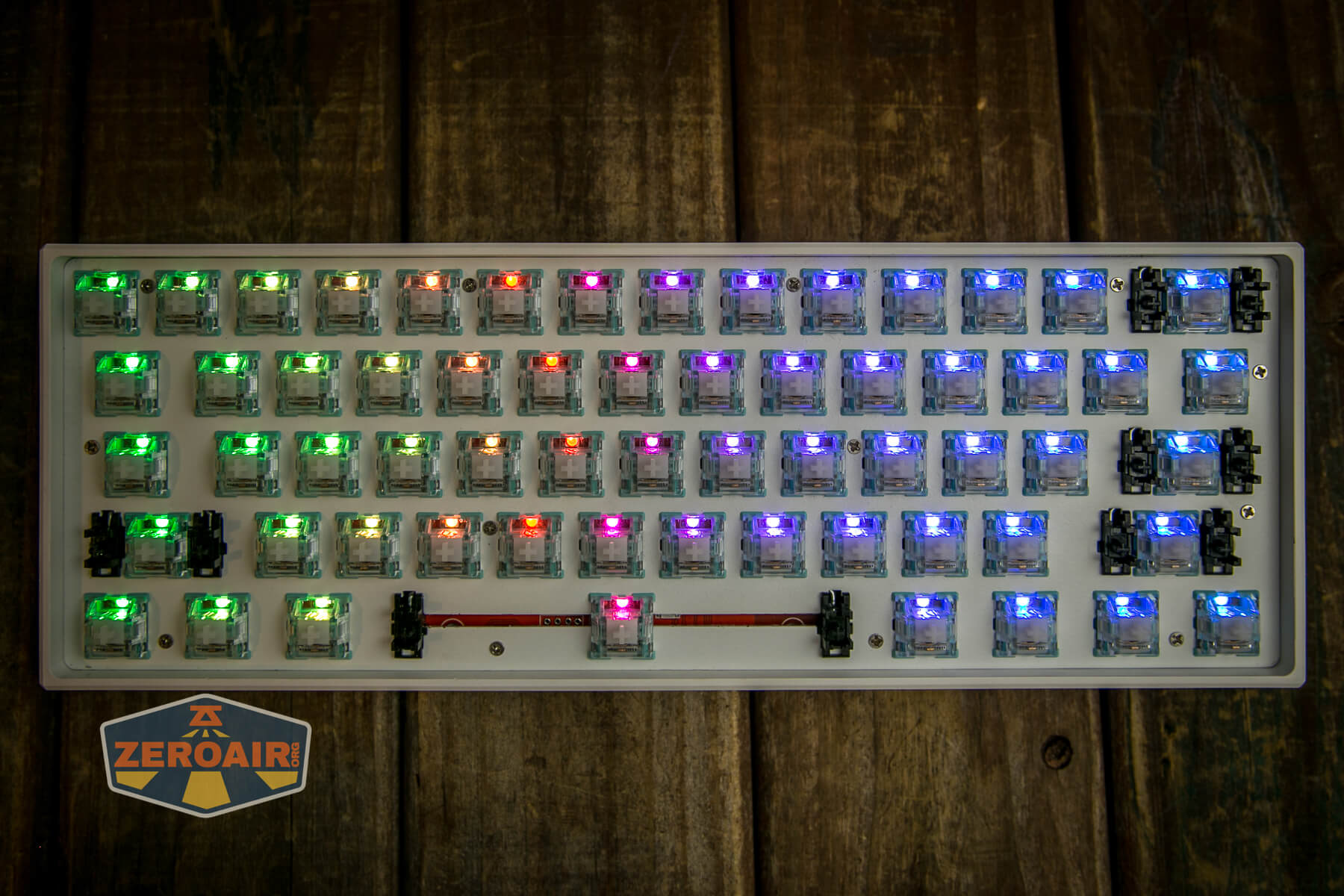
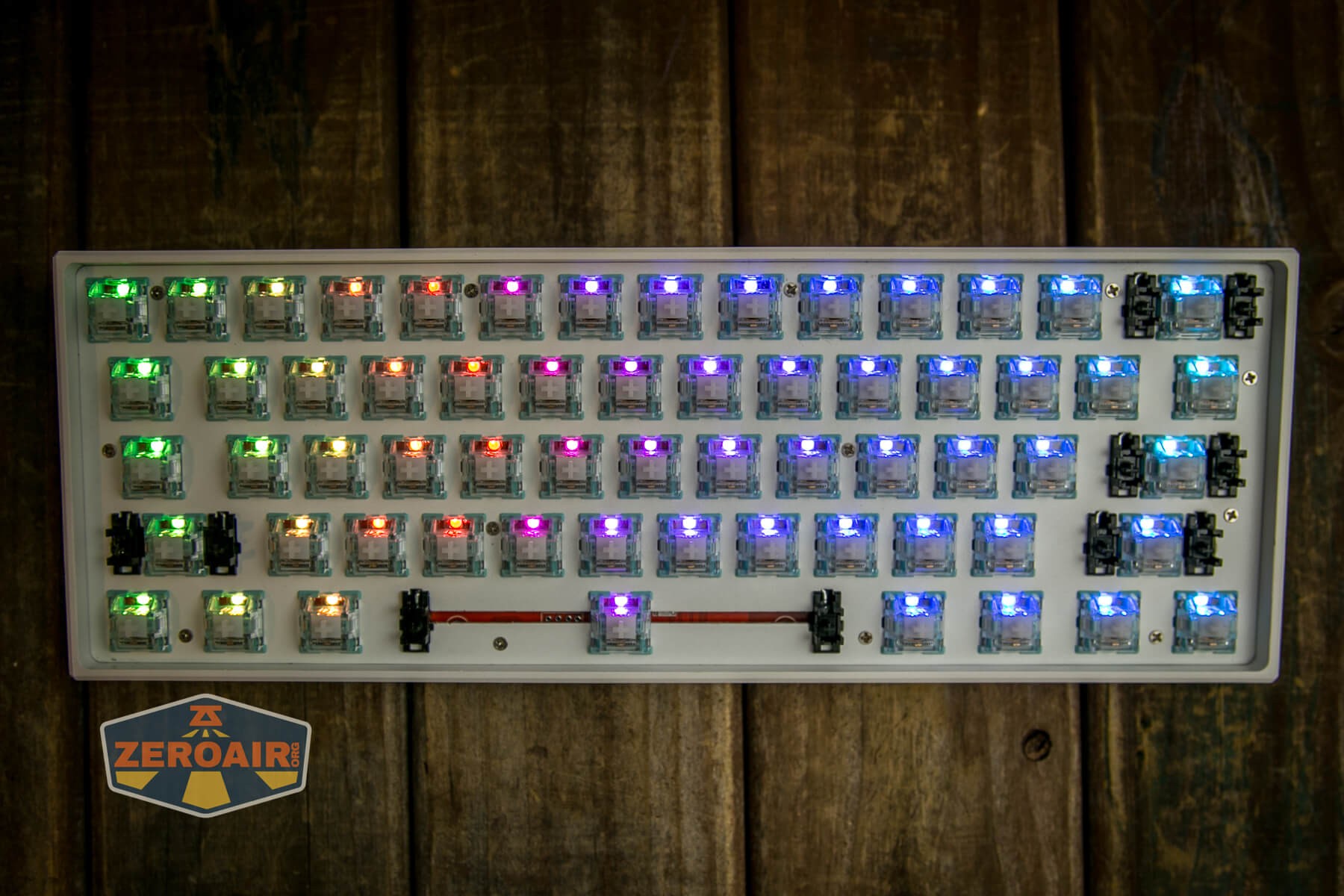
RGB Color options:
RGB Speed settings:
RGB Brightness options:
Different RGB lighting options:
Conclusion
What I like
- Size and shape (I do like a 60% keyboard!)
- USB-C
- Silent Outemu switches are fairly nice.
- Fully programmable if you’re willing to flash QMK onto the board!
- Mac compatibility
What I don’t like
- Access to arrows
- Manual is a bit brief; More words and description would be great
Notes
- This keyboard was provided by Flashquark for review. I was not paid to write this review.
- This content originally appeared at zeroair.org. Please visit there for the best experience!
- Please use my Amazon.com referral link to help support zeroair.org!
- Please support me on Patreon! I deeply appreciate your support!
Discover more from ZeroAir Reviews
Subscribe to get the latest posts sent to your email.